> ## Documentation Index
> Fetch the complete documentation index at: https://developers.explorium.ai/llms.txt
> Use this file to discover all available pages before exploring further.

# Uploading Data from a Salesforce Object

<Note>
  **Note**

  The selected report cannot exceed 2000 records otherwise the information cannot be synchronized.
</Note>

<Steps>
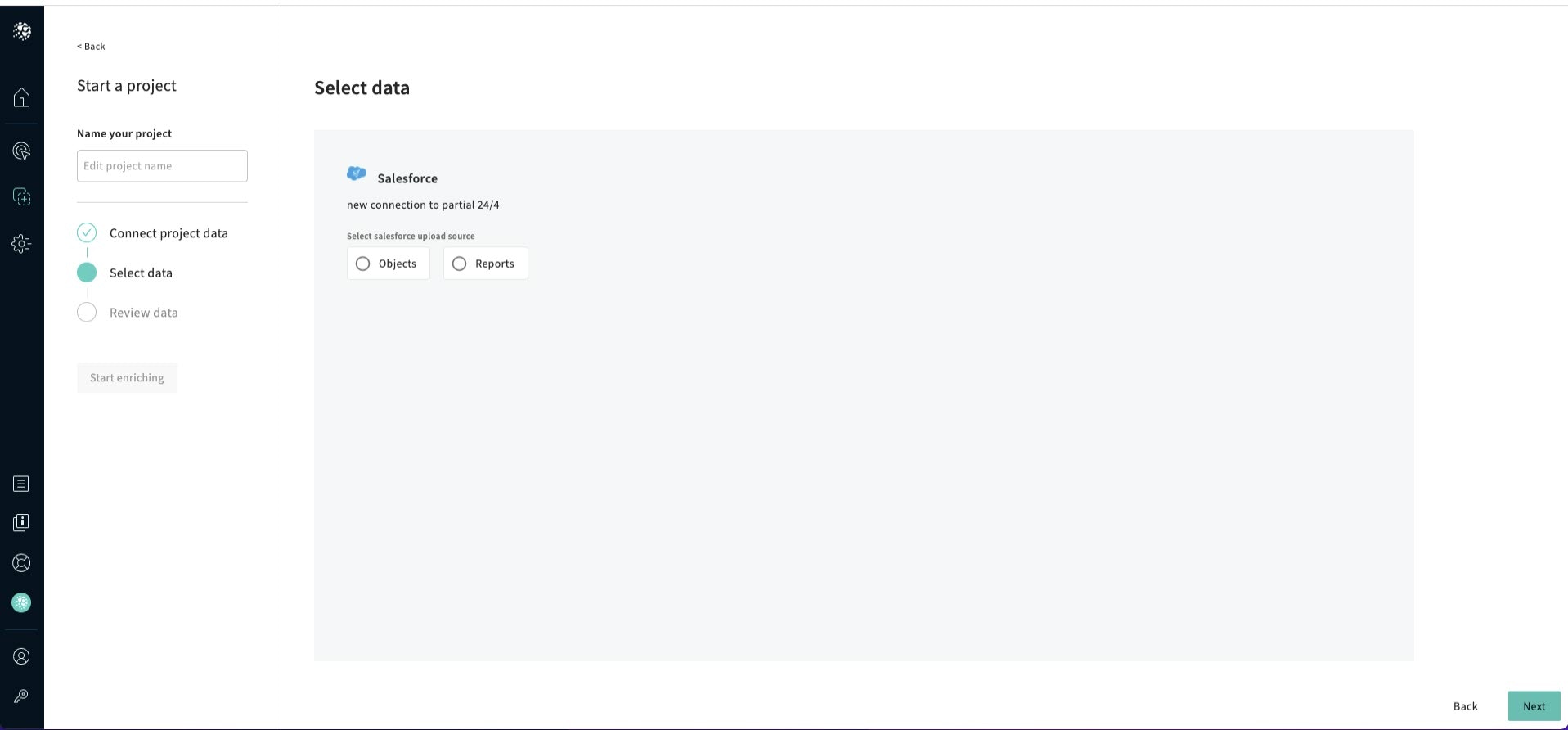
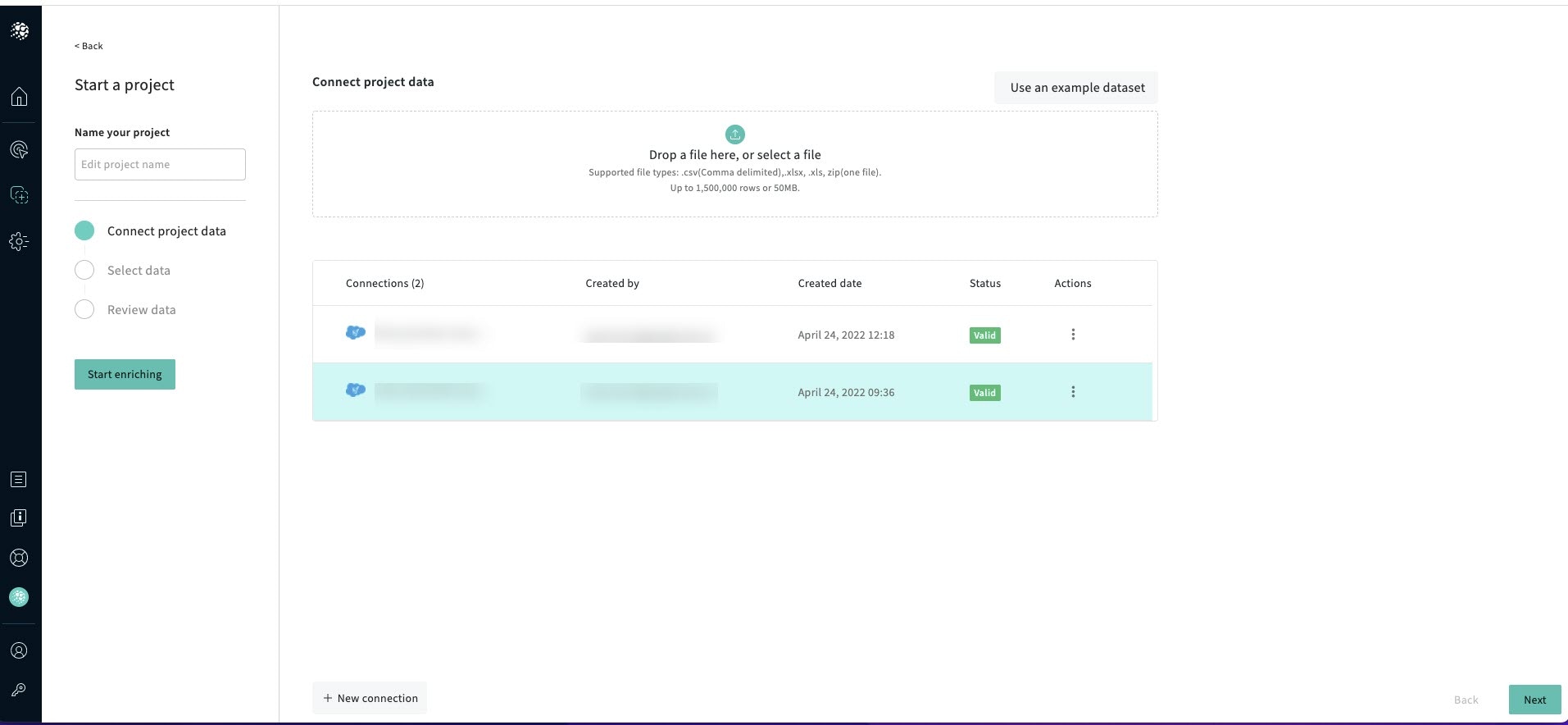
  <Step title="Once you have created and connected to your salesforce connection">
    <Frame>
      <img src="https://mintcdn.com/explorium/MGLAXJsBFVllfEt-/images/deprecated-docs/b772afe-1connect.jpeg?fit=max&auto=format&n=MGLAXJsBFVllfEt-&q=85&s=dbd08a3a6ca3097fe0b61a813cd5fab0" alt="" width="1913" height="884" data-path="images/deprecated-docs/b772afe-1connect.jpeg" />
    </Frame>
  </Step>

  <Step title="Click Next">
    The Select data screen is displayed.
    <Frame>
      <img src="https://mintcdn.com/explorium/MGLAXJsBFVllfEt-/images/deprecated-docs/f70f641-2.connect.jpeg?fit=max&auto=format&n=MGLAXJsBFVllfEt-&q=85&s=004b01a0818b763e11836767ac01460e" alt="" width="1917" height="892" data-path="images/deprecated-docs/f70f641-2.connect.jpeg" />
    </Frame>
  </Step>

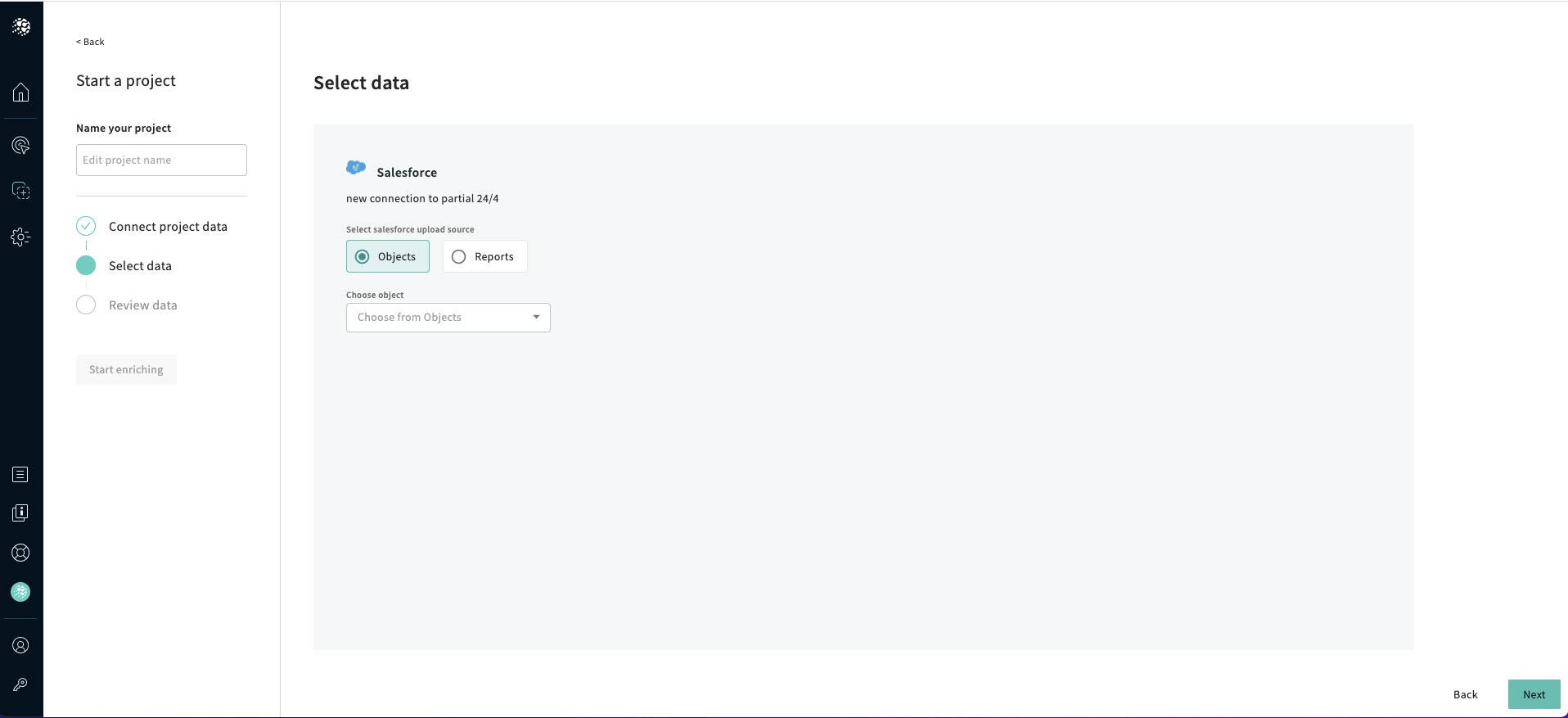
  <Step title="Click Objects">
    <Frame>
      <img src="https://mintcdn.com/explorium/MGLAXJsBFVllfEt-/images/deprecated-docs/5700edd-Salesforce_Objects.jpg?fit=max&auto=format&n=MGLAXJsBFVllfEt-&q=85&s=f2c504d2c733c82d64e61e2500d7c43e" alt="" width="1916" height="877" data-path="images/deprecated-docs/5700edd-Salesforce_Objects.jpg" />
    </Frame>
  </Step>

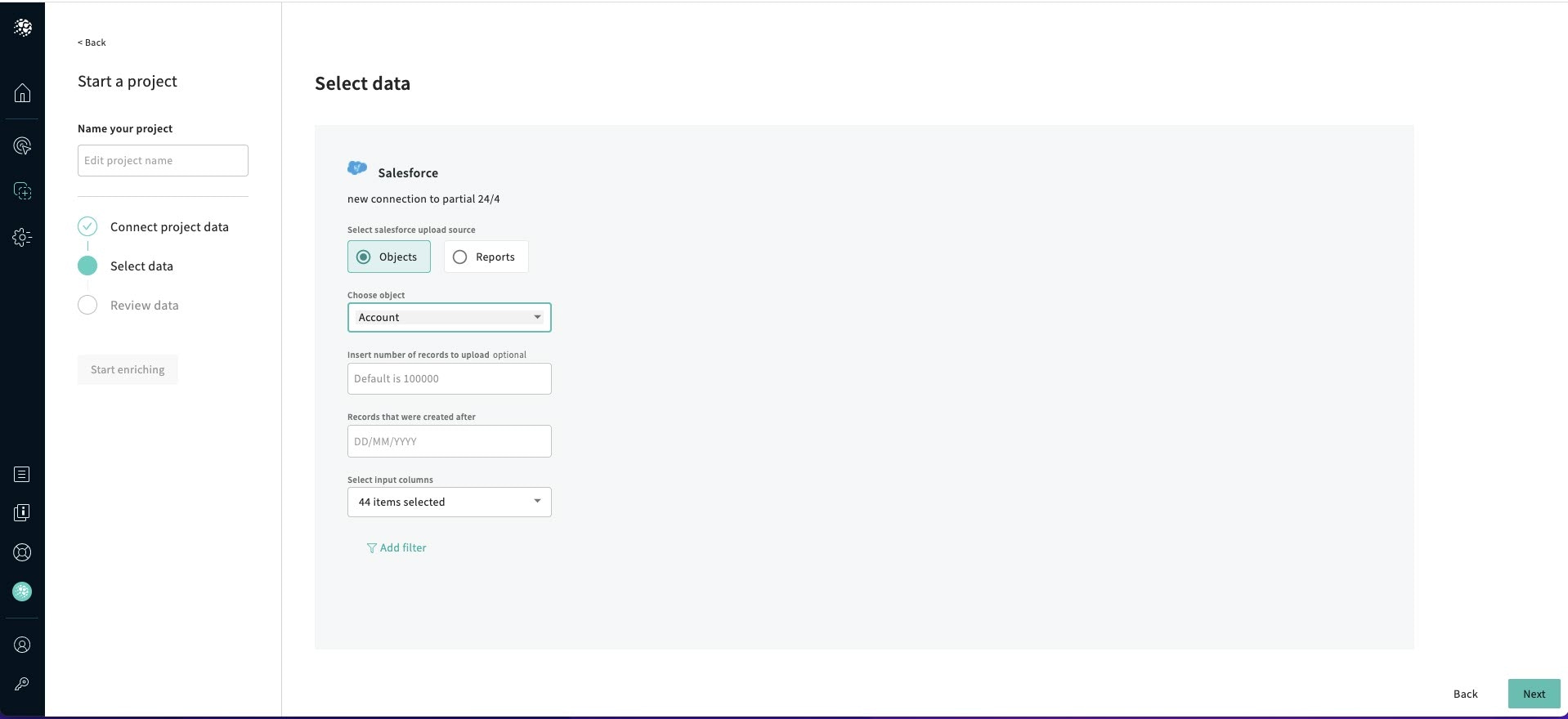
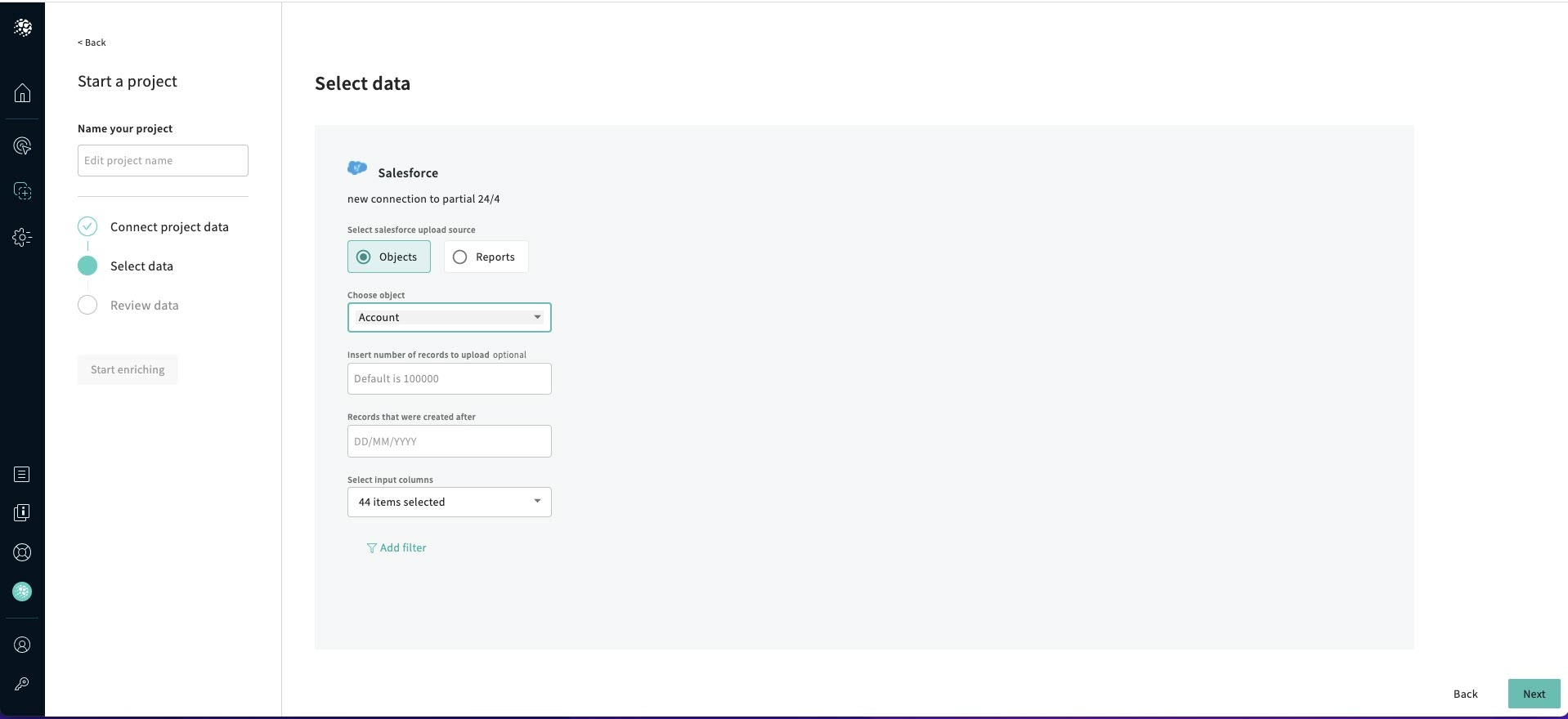
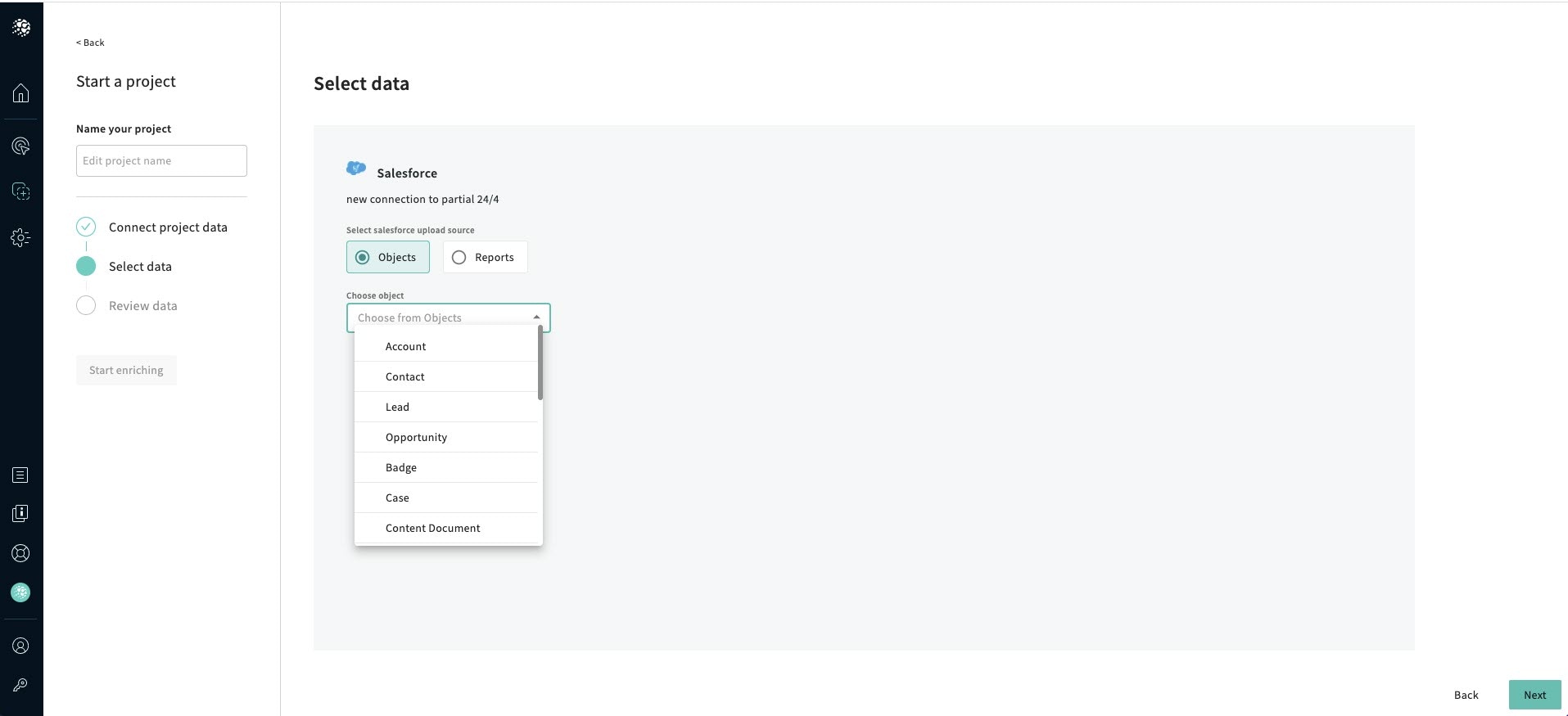
  <Step title="Choose an Object from the drop-down list">
    <Frame>
      <img src="https://mintcdn.com/explorium/MGLAXJsBFVllfEt-/images/deprecated-docs/a88c694-Salesforce_Object_dropdown_list.jpg?fit=max&auto=format&n=MGLAXJsBFVllfEt-&q=85&s=f3c47d88a63351101c8fb5e6d4e98b22" alt="" width="1915" height="875" data-path="images/deprecated-docs/a88c694-Salesforce_Object_dropdown_list.jpg" />
    </Frame>
  </Step>

  <Step title="Insert the number of records to upload which is optional">
    <Frame>
      <img src="https://mintcdn.com/explorium/MGLAXJsBFVllfEt-/images/deprecated-docs/1501063-Salesforce_Insert_number_of_Records.jpg?fit=max&auto=format&n=MGLAXJsBFVllfEt-&q=85&s=8ad04aa0937260ce1a5c3e52655168eb" alt="" width="1918" height="880" data-path="images/deprecated-docs/1501063-Salesforce_Insert_number_of_Records.jpg" />
    </Frame>
  </Step>

  <Step title="Insert the date">
    <Frame>
      <img src="https://mintcdn.com/explorium/MGLAXJsBFVllfEt-/images/deprecated-docs/54964b1-Salesforce_Date.jpg?fit=max&auto=format&n=MGLAXJsBFVllfEt-&q=85&s=be2e6f83bdd0cb51bae81f14c63cc5c9" alt="" width="1918" height="880" data-path="images/deprecated-docs/54964b1-Salesforce_Date.jpg" />
    </Frame>
  </Step>

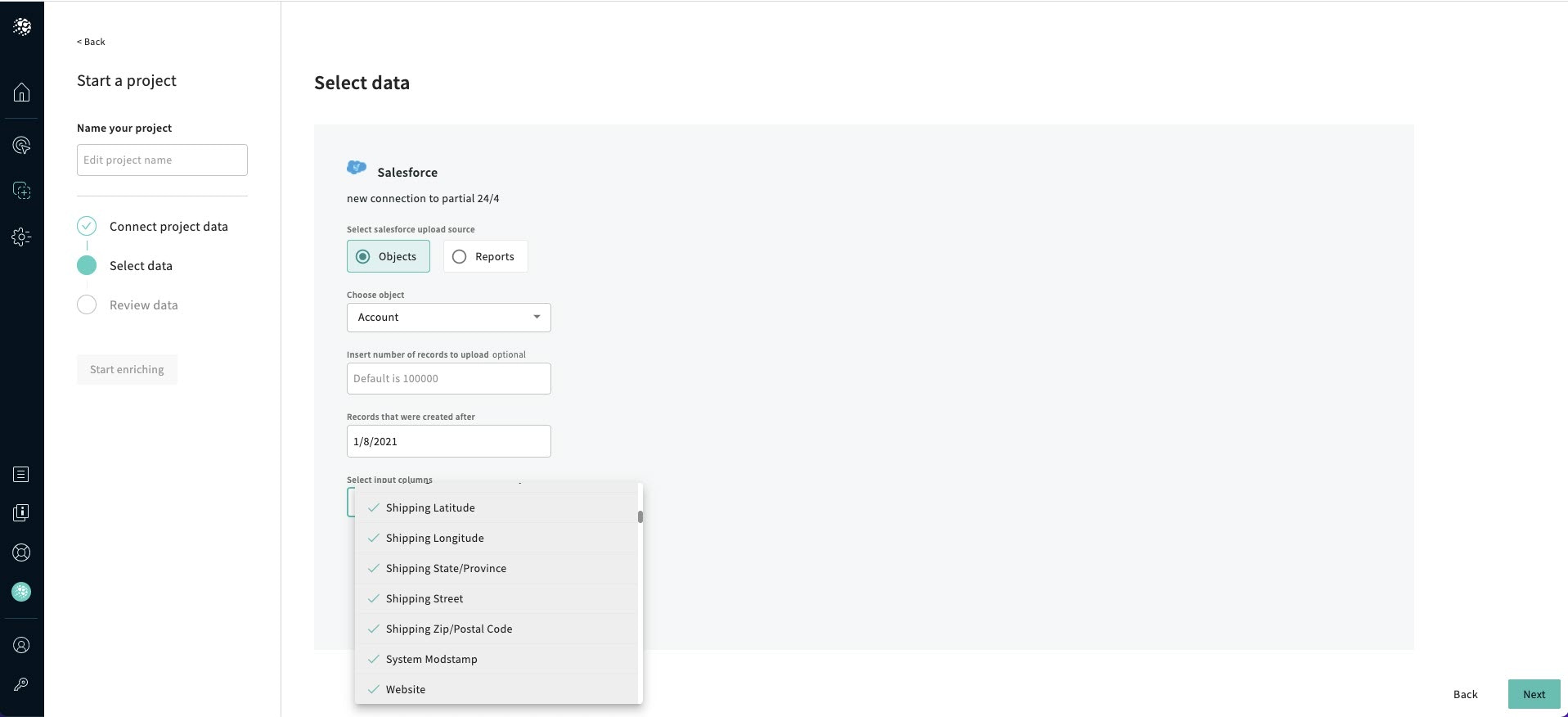
  <Step title="Select the Input columns">
    <Frame>
      <img src="https://mintcdn.com/explorium/MGLAXJsBFVllfEt-/images/deprecated-docs/9dba5fe-Salesforce_Input_Columns.jpg?fit=max&auto=format&n=MGLAXJsBFVllfEt-&q=85&s=43061e7350fac4d42bb8b62a97a0ad59" alt="" width="1917" height="876" data-path="images/deprecated-docs/9dba5fe-Salesforce_Input_Columns.jpg" />
    </Frame>
  </Step>

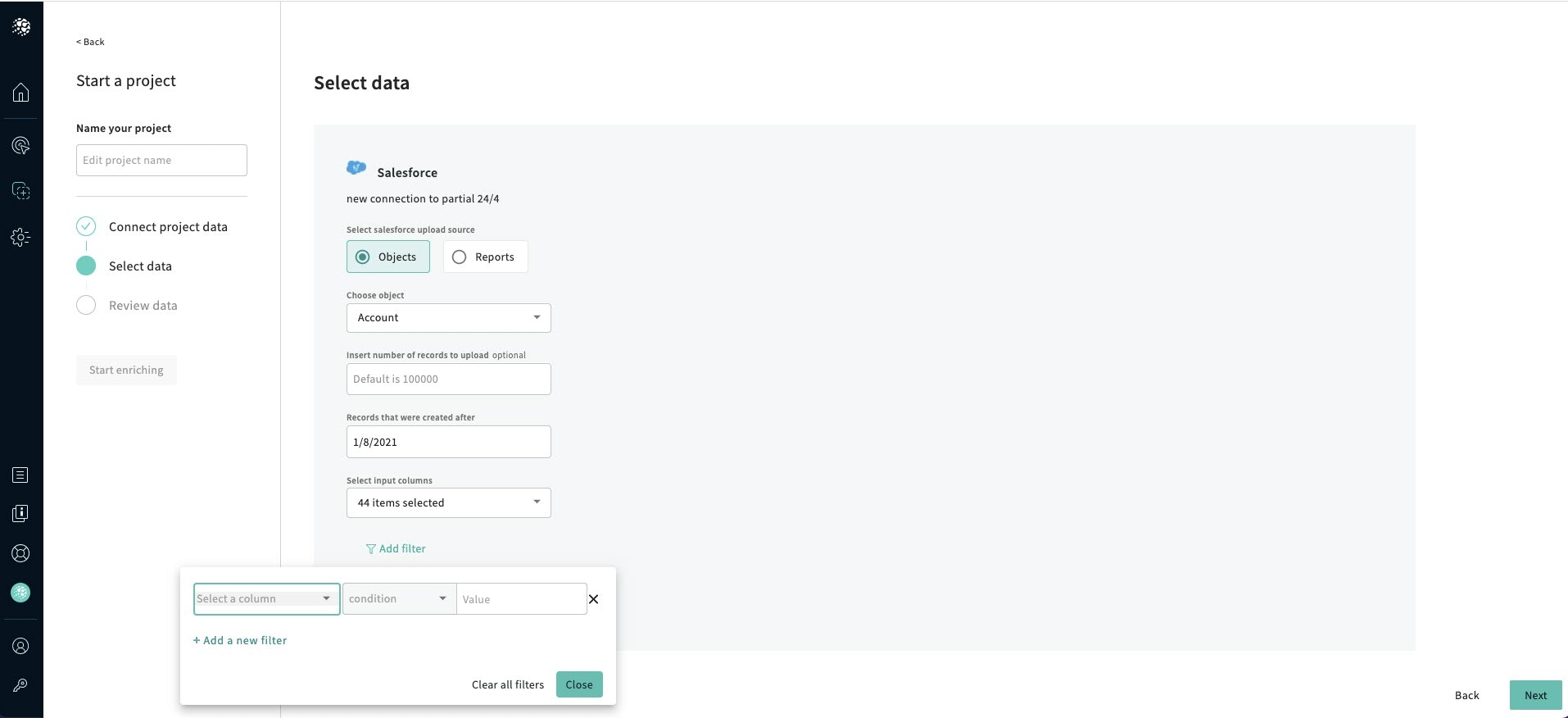
  <Step title="Add filters">
    <Frame>
      <img src="https://mintcdn.com/explorium/MGLAXJsBFVllfEt-/images/deprecated-docs/7af86d9-Salesforce_Add_Filters.jpg?fit=max&auto=format&n=MGLAXJsBFVllfEt-&q=85&s=175dc7f83f429e08373f5b56d4f51033" alt="" width="1914" height="876" data-path="images/deprecated-docs/7af86d9-Salesforce_Add_Filters.jpg" />
    </Frame>
  </Step>

  <Step>
    Click Close, and click Next, and the Review Data screen is displayed.
  </Step>
</Steps>