> ## Documentation Index
> Fetch the complete documentation index at: https://developers.explorium.ai/llms.txt
> Use this file to discover all available pages before exploring further.
# Explorium Prospects Search Chatbot
> An intelligent conversational interface that translates natural language queries into Explorium API calls to find B2B prospects and export them as CSV files. ##
## Template
Download the following json file and import it to a new n8n workflow:
 ## Overview
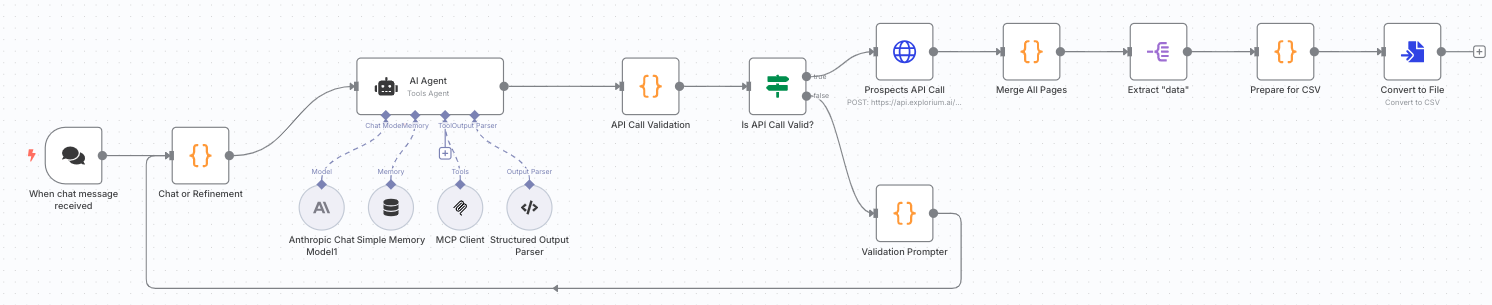
This n8n workflow creates a chatbot that understands natural language requests for finding business prospects and automatically:
* Interprets your query using AI (Claude Sonnet 3.7)
* Converts it to proper Explorium API filters
* Validates the API request structure
* Fetches prospect data from Explorium
* Exports results as a downloadable CSV file
Perfect for sales teams, recruiters, and business development professionals who need to quickly find and export targeted prospect lists without learning complex API syntax.
## Key Features
* **Natural Language Interface**: Simply describe who you're looking for in plain English
* **Smart Query Translation**: AI converts your request to valid API parameters
* **Built-in Validation**: Ensures API calls meet Explorium's requirements
* **Error Recovery**: Automatically retries with corrections if validation fails
* **Pagination Support**: Handles large result sets automatically
* **CSV Export**: Clean, formatted output ready for CRM import
* **Conversation Memory**: Maintains context for follow-up queries
## Example Queries
The chatbot understands queries like:
* "Find marketing directors at SaaS companies in New York with 50-200 employees"
* "Get me CTOs from fintech startups in California"
* "Show me sales managers at healthcare companies with revenue over \$10M"
* "Find engineers at Microsoft with 3-5 years experience"
* "Get customer service leads from e-commerce companies in Europe"
## Prerequisites
Before setting up this workflow, ensure you have:
1. **n8n instance** with chat interface enabled
2. **Anthropic API key** for Claude
3. **Explorium API credentials** (API Key)
4. Basic understanding of n8n chat workflows
## Supported Filters
The chatbot can search using these criteria:
### Company Filters
* **Size**: 1-10, 11-50, 51-200, 201-500, 501-1000, 1001-5000, 5001-10000, 10001+ employees
* **Revenue**: Ranges from $0-500K up to $10T+
* **Age**: 0-3, 3-6, 6-10, 10-20, 20+ years
* **Location**: Countries, regions, cities
* **Industry**: Google categories, NAICS codes, LinkedIn categories
* **Name**: Specific company names
### Prospect Filters
* **Job Level**: CXO, VP, Director, Manager, Senior, Entry, etc.
* **Department**: Sales, Marketing, Engineering, Finance, HR, etc.
* **Experience**: Total months and current role duration
* **Location**: Country and region codes
* **Contact Info**: Filter by email/phone availability
## Installation & Setup
### Step 1: Import the Workflow
Create a new workflow.
Download the workflow JSON from above.
In your n8n instance, go to **Workflows** **Add Workflow** **Import from File**
Select the JSON file and click **Import**
### Step 2: Configure Anthropic Credentials
Click on the **Anthropic Chat Model1** node
Under Credentials, click **Create New**
Add your Anthropic API key
Name: "Anthropic API"
Save credentials
### Step 3: Configure Explorium Credentials
You'll need to set up Explorium credentials in two places:
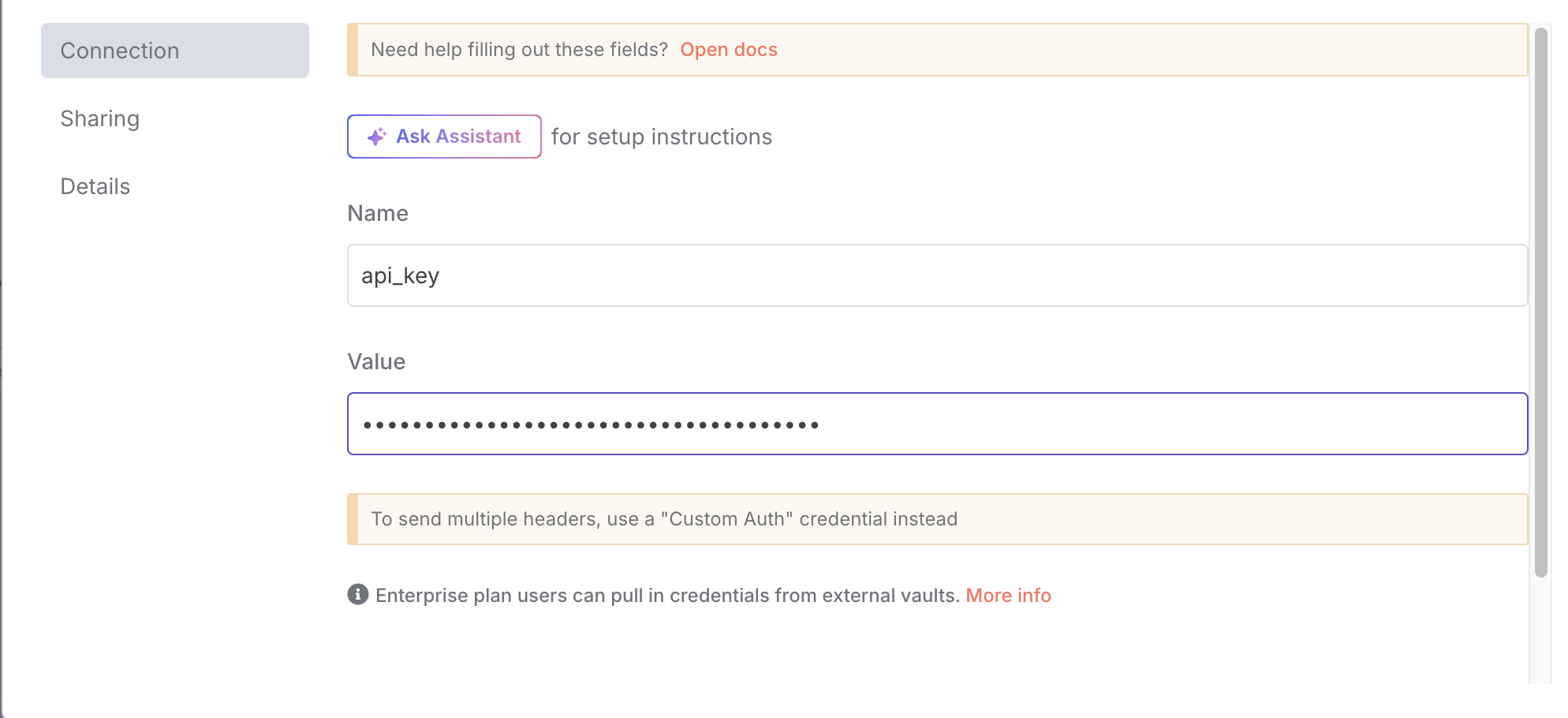
#### For MCP Client:
Click on the **MCP Client** node
Under Credentials, create new **Header Auth**
Configure the header:
1. **Name**: `api_key`
2. **Value**: `YOUR_EXPLORIUM_API_TOKEN`
Save credentials
## Overview
This n8n workflow creates a chatbot that understands natural language requests for finding business prospects and automatically:
* Interprets your query using AI (Claude Sonnet 3.7)
* Converts it to proper Explorium API filters
* Validates the API request structure
* Fetches prospect data from Explorium
* Exports results as a downloadable CSV file
Perfect for sales teams, recruiters, and business development professionals who need to quickly find and export targeted prospect lists without learning complex API syntax.
## Key Features
* **Natural Language Interface**: Simply describe who you're looking for in plain English
* **Smart Query Translation**: AI converts your request to valid API parameters
* **Built-in Validation**: Ensures API calls meet Explorium's requirements
* **Error Recovery**: Automatically retries with corrections if validation fails
* **Pagination Support**: Handles large result sets automatically
* **CSV Export**: Clean, formatted output ready for CRM import
* **Conversation Memory**: Maintains context for follow-up queries
## Example Queries
The chatbot understands queries like:
* "Find marketing directors at SaaS companies in New York with 50-200 employees"
* "Get me CTOs from fintech startups in California"
* "Show me sales managers at healthcare companies with revenue over \$10M"
* "Find engineers at Microsoft with 3-5 years experience"
* "Get customer service leads from e-commerce companies in Europe"
## Prerequisites
Before setting up this workflow, ensure you have:
1. **n8n instance** with chat interface enabled
2. **Anthropic API key** for Claude
3. **Explorium API credentials** (API Key)
4. Basic understanding of n8n chat workflows
## Supported Filters
The chatbot can search using these criteria:
### Company Filters
* **Size**: 1-10, 11-50, 51-200, 201-500, 501-1000, 1001-5000, 5001-10000, 10001+ employees
* **Revenue**: Ranges from $0-500K up to $10T+
* **Age**: 0-3, 3-6, 6-10, 10-20, 20+ years
* **Location**: Countries, regions, cities
* **Industry**: Google categories, NAICS codes, LinkedIn categories
* **Name**: Specific company names
### Prospect Filters
* **Job Level**: CXO, VP, Director, Manager, Senior, Entry, etc.
* **Department**: Sales, Marketing, Engineering, Finance, HR, etc.
* **Experience**: Total months and current role duration
* **Location**: Country and region codes
* **Contact Info**: Filter by email/phone availability
## Installation & Setup
### Step 1: Import the Workflow
Create a new workflow.
Download the workflow JSON from above.
In your n8n instance, go to **Workflows** **Add Workflow** **Import from File**
Select the JSON file and click **Import**
### Step 2: Configure Anthropic Credentials
Click on the **Anthropic Chat Model1** node
Under Credentials, click **Create New**
Add your Anthropic API key
Name: "Anthropic API"
Save credentials
### Step 3: Configure Explorium Credentials
You'll need to set up Explorium credentials in two places:
#### For MCP Client:
Click on the **MCP Client** node
Under Credentials, create new **Header Auth**
Configure the header:
1. **Name**: `api_key`
2. **Value**: `YOUR_EXPLORIUM_API_TOKEN`
Save credentials
 #### For API Calls:
Click on the **Prospects API Call** node
Use the same Header Auth credentials created above
Verify the API endpoint is correct
### Step 4: Activate the Workflow
Save the workflow
Click the **Active** toggle to enable it
The chat interface will now be available
### Step 5: Access the Chat Interface
Click on the **When chat message received** node
Copy the webhook URL
Access this URL in your browser to start chatting
## How It Works
### Workflow Architecture
1. **Chat Trigger**: Receives natural language queries from users
2. **Memory Buffer**: Maintains conversation context
3. **AI Agent**: Interprets queries and generates API parameters
4. **Validation**: Checks API structure against Explorium requirements
5. **API Call**: Fetches prospect data with pagination
6. **Data Processing**: Formats results for CSV export
7. **File Conversion**: Creates downloadable CSV file
### Processing Flow
```
User Query AI Interpretation Validation API Call CSV Export
↑ ↓
└──── Error Correction Loop ←──────┘
```
### Validation Rules
The workflow validates:
* Filter keys are allowed by Explorium API
* Values match expected formats (e.g., valid country codes)
* Range filters have proper gte/lte values
* No duplicate values in arrays
* Required structure is maintained
## Usage Guide
### Basic Conversation Flow
```
"Find me VPs of Sales at software companies in the US"
```
* Generates API filters
* Validates the structure
* Fetches data
* Returns CSV download link
```
"Can you also include directors and filter for companies with 100+ employees?"
```
### Query Tips
* **Be specific**: Include job titles, departments, company details
* **Use standard terms**: "CTO" instead of "Chief Technology Officer"
* **Specify locations**: Use country names or standard codes
* **Include size/revenue**: Helps narrow results effectively
### Advanced Queries
Combine multiple criteria:
```
"Find engineering managers and senior engineers at B2B SaaS companies
in New York and California with 50-500 employees and revenue over $5M
who have been in their role for at least 1 year"
```
## Output Format
The CSV file includes:
* Prospect ID
* Name (first, last, full)
* Location (country, region, city)
* LinkedIn profile
* Experience summary
* Skills and interests
* Company details
* Job information
* Business ID
## Troubleshooting
### Common Issues
**"Validation failed" errors**
* Check that your query uses supported filter values
* Ensure location names are spelled correctly
* Verify company sizes/revenues match allowed ranges
**No results returned**
* Broaden your search criteria
* Check if the company exists in Explorium's database
* Verify filter combinations aren't too restrictive
**Chat not responding**
* Ensure workflow is activated
* Check all credentials are properly configured
* Verify webhook URL is accessible
**Large result sets timing out**
* Try adding more specific filters
* Limit results by location or company size
* Use the size parameter (max 10,000)
### Error Messages
The bot provides clear feedback:
* **Invalid filters**: Shows which filters aren't supported
* **Value errors**: Lists correct options for each field
* **API failures**: Explains connection or authentication issues
## Performance Optimization
### Best Practices
1. **Start broad, then narrow**: Begin with basic criteria and add filters
2. **Use business IDs**: When targeting specific companies
3. **Limit by contact info**: Add `has_email: true` for actionable leads
4. **Batch by location**: Process regions separately for large searches
### API Limits
* Maximum 10,000 results per search
* Pagination handles up to 100 records per page
* Rate limits apply based on your Explorium subscription
## Customization Options
### Modify AI Behavior
Edit the **AI Agent** system message to:
* Change response format
* Add custom filters
* Adjust interpretation logic
* Include additional instructions
### Extend Functionality
Add nodes to:
* Send results via email
* Import directly to CRM
* Schedule recurring searches
* Create custom reports
### Integration Ideas
* Connect to Slack for team queries
* Add to CRM workflows
* Create lead scoring systems
* Build automated outreach campaigns
## Security Considerations
* API credentials are stored securely in n8n
* Chat sessions are isolated
* No prospect data is stored permanently
* CSV files are generated on-demand
## Support Resources
For issues with:
* **n8n platform**: Check n8n documentation
* **Explorium API**: Contact Explorium support
* **Anthropic/Claude**: Refer to Anthropic docs
* **Workflow logic**: Review node configurations
#### For API Calls:
Click on the **Prospects API Call** node
Use the same Header Auth credentials created above
Verify the API endpoint is correct
### Step 4: Activate the Workflow
Save the workflow
Click the **Active** toggle to enable it
The chat interface will now be available
### Step 5: Access the Chat Interface
Click on the **When chat message received** node
Copy the webhook URL
Access this URL in your browser to start chatting
## How It Works
### Workflow Architecture
1. **Chat Trigger**: Receives natural language queries from users
2. **Memory Buffer**: Maintains conversation context
3. **AI Agent**: Interprets queries and generates API parameters
4. **Validation**: Checks API structure against Explorium requirements
5. **API Call**: Fetches prospect data with pagination
6. **Data Processing**: Formats results for CSV export
7. **File Conversion**: Creates downloadable CSV file
### Processing Flow
```
User Query AI Interpretation Validation API Call CSV Export
↑ ↓
└──── Error Correction Loop ←──────┘
```
### Validation Rules
The workflow validates:
* Filter keys are allowed by Explorium API
* Values match expected formats (e.g., valid country codes)
* Range filters have proper gte/lte values
* No duplicate values in arrays
* Required structure is maintained
## Usage Guide
### Basic Conversation Flow
```
"Find me VPs of Sales at software companies in the US"
```
* Generates API filters
* Validates the structure
* Fetches data
* Returns CSV download link
```
"Can you also include directors and filter for companies with 100+ employees?"
```
### Query Tips
* **Be specific**: Include job titles, departments, company details
* **Use standard terms**: "CTO" instead of "Chief Technology Officer"
* **Specify locations**: Use country names or standard codes
* **Include size/revenue**: Helps narrow results effectively
### Advanced Queries
Combine multiple criteria:
```
"Find engineering managers and senior engineers at B2B SaaS companies
in New York and California with 50-500 employees and revenue over $5M
who have been in their role for at least 1 year"
```
## Output Format
The CSV file includes:
* Prospect ID
* Name (first, last, full)
* Location (country, region, city)
* LinkedIn profile
* Experience summary
* Skills and interests
* Company details
* Job information
* Business ID
## Troubleshooting
### Common Issues
**"Validation failed" errors**
* Check that your query uses supported filter values
* Ensure location names are spelled correctly
* Verify company sizes/revenues match allowed ranges
**No results returned**
* Broaden your search criteria
* Check if the company exists in Explorium's database
* Verify filter combinations aren't too restrictive
**Chat not responding**
* Ensure workflow is activated
* Check all credentials are properly configured
* Verify webhook URL is accessible
**Large result sets timing out**
* Try adding more specific filters
* Limit results by location or company size
* Use the size parameter (max 10,000)
### Error Messages
The bot provides clear feedback:
* **Invalid filters**: Shows which filters aren't supported
* **Value errors**: Lists correct options for each field
* **API failures**: Explains connection or authentication issues
## Performance Optimization
### Best Practices
1. **Start broad, then narrow**: Begin with basic criteria and add filters
2. **Use business IDs**: When targeting specific companies
3. **Limit by contact info**: Add `has_email: true` for actionable leads
4. **Batch by location**: Process regions separately for large searches
### API Limits
* Maximum 10,000 results per search
* Pagination handles up to 100 records per page
* Rate limits apply based on your Explorium subscription
## Customization Options
### Modify AI Behavior
Edit the **AI Agent** system message to:
* Change response format
* Add custom filters
* Adjust interpretation logic
* Include additional instructions
### Extend Functionality
Add nodes to:
* Send results via email
* Import directly to CRM
* Schedule recurring searches
* Create custom reports
### Integration Ideas
* Connect to Slack for team queries
* Add to CRM workflows
* Create lead scoring systems
* Build automated outreach campaigns
## Security Considerations
* API credentials are stored securely in n8n
* Chat sessions are isolated
* No prospect data is stored permanently
* CSV files are generated on-demand
## Support Resources
For issues with:
* **n8n platform**: Check n8n documentation
* **Explorium API**: Contact Explorium support
* **Anthropic/Claude**: Refer to Anthropic docs
* **Workflow logic**: Review node configurations