> ## Documentation Index
> Fetch the complete documentation index at: https://developers.explorium.ai/llms.txt
> Use this file to discover all available pages before exploring further.
# Google Sheets Company Enrichment with Explorium MCP
> Automatically enrich company data in Google Sheets using Explorium's comprehensive B2B intelligence platform through n8n automation.
## Template
Download the following json file and import it to a new n8n workflow:
 ## Overview
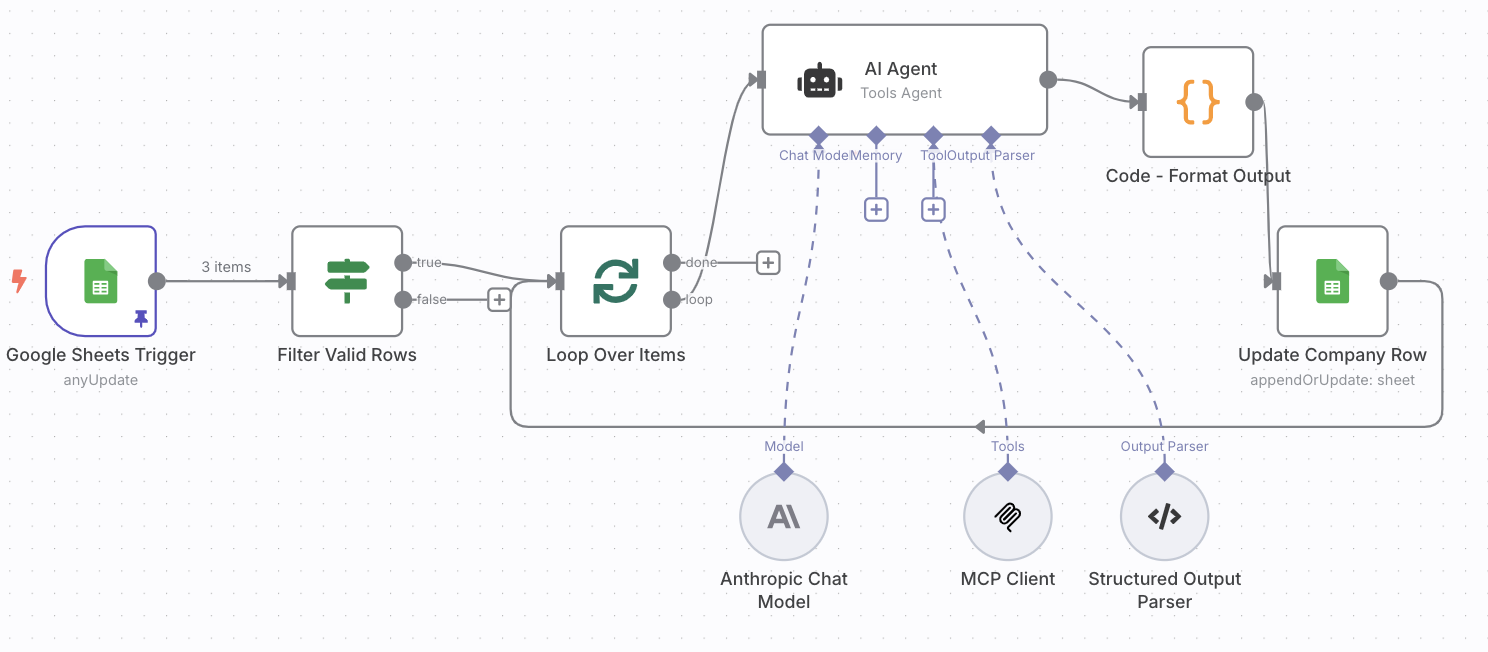
This n8n workflow template enables automatic enrichment of company information in your Google Sheets. When you add a new company or update existing company details (name or website), the workflow automatically fetches additional business intelligence data using Explorium MCP and updates your sheet with:
* Business ID
* NAICS industry code
* Number of employees (range)
* Annual revenue (range)
## Key Features
* **Automatic Triggering**: Monitors your Google Sheet for new rows or updates to company name/website fields
* **Smart Processing**: Only processes new or modified rows, not the entire sheet
* **Data Validation**: Ensures both company name and website are present before processing
* **Error Handling**: Processes each row individually to prevent one failure from affecting others
* **Powered by AI**: Uses Claude Sonnet 4 with Explorium MCP for intelligent data enrichment
## Prerequisites
Before setting up this workflow, ensure you have:
1. **n8n instance** (self-hosted or cloud)
2. **Google account** with access to Google Sheets
3. **Anthropic API key** for Claude
4. **Explorium MCP API key**
## Installation & Setup
### Step 1: Import the Workflow
Create a new workflow.
Download the workflow JSON from above.
In your n8n instance, go to **Workflows** **Add Workflow** **Import from File**
Select the JSON file and click **Import**
### Step 2: Create Google Sheet
Create a new google sheet (or make a copy of this [template](https://docs.google.com/spreadsheets/d/14PypuKFWkMftiCtPrekpbav63tEGmgGgUP3cDwv7wXE/edit?usp=sharing))
Your Google Sheet must have the following columns (exact names):
* `name` - Company name
* `website` - Company website URL
* `business_id` - Will be populated by the workflow
* `naics` - Will be populated by the workflow
* `number_of_employees_range` - Will be populated by the workflow
* `yearly_revenue_range` - Will be populated by the workflow
### Step 3: Configure Google Sheets Credentials
You'll need to set up two Google credentials:
#### Google Sheets Trigger Credentials:
Click on the **Google Sheets Trigger** node
Under Credentials, click **Create New**
If working on n8n Cloud, Click the 'Sign in with Google' button
## Overview
This n8n workflow template enables automatic enrichment of company information in your Google Sheets. When you add a new company or update existing company details (name or website), the workflow automatically fetches additional business intelligence data using Explorium MCP and updates your sheet with:
* Business ID
* NAICS industry code
* Number of employees (range)
* Annual revenue (range)
## Key Features
* **Automatic Triggering**: Monitors your Google Sheet for new rows or updates to company name/website fields
* **Smart Processing**: Only processes new or modified rows, not the entire sheet
* **Data Validation**: Ensures both company name and website are present before processing
* **Error Handling**: Processes each row individually to prevent one failure from affecting others
* **Powered by AI**: Uses Claude Sonnet 4 with Explorium MCP for intelligent data enrichment
## Prerequisites
Before setting up this workflow, ensure you have:
1. **n8n instance** (self-hosted or cloud)
2. **Google account** with access to Google Sheets
3. **Anthropic API key** for Claude
4. **Explorium MCP API key**
## Installation & Setup
### Step 1: Import the Workflow
Create a new workflow.
Download the workflow JSON from above.
In your n8n instance, go to **Workflows** **Add Workflow** **Import from File**
Select the JSON file and click **Import**
### Step 2: Create Google Sheet
Create a new google sheet (or make a copy of this [template](https://docs.google.com/spreadsheets/d/14PypuKFWkMftiCtPrekpbav63tEGmgGgUP3cDwv7wXE/edit?usp=sharing))
Your Google Sheet must have the following columns (exact names):
* `name` - Company name
* `website` - Company website URL
* `business_id` - Will be populated by the workflow
* `naics` - Will be populated by the workflow
* `number_of_employees_range` - Will be populated by the workflow
* `yearly_revenue_range` - Will be populated by the workflow
### Step 3: Configure Google Sheets Credentials
You'll need to set up two Google credentials:
#### Google Sheets Trigger Credentials:
Click on the **Google Sheets Trigger** node
Under Credentials, click **Create New**
If working on n8n Cloud, Click the 'Sign in with Google' button
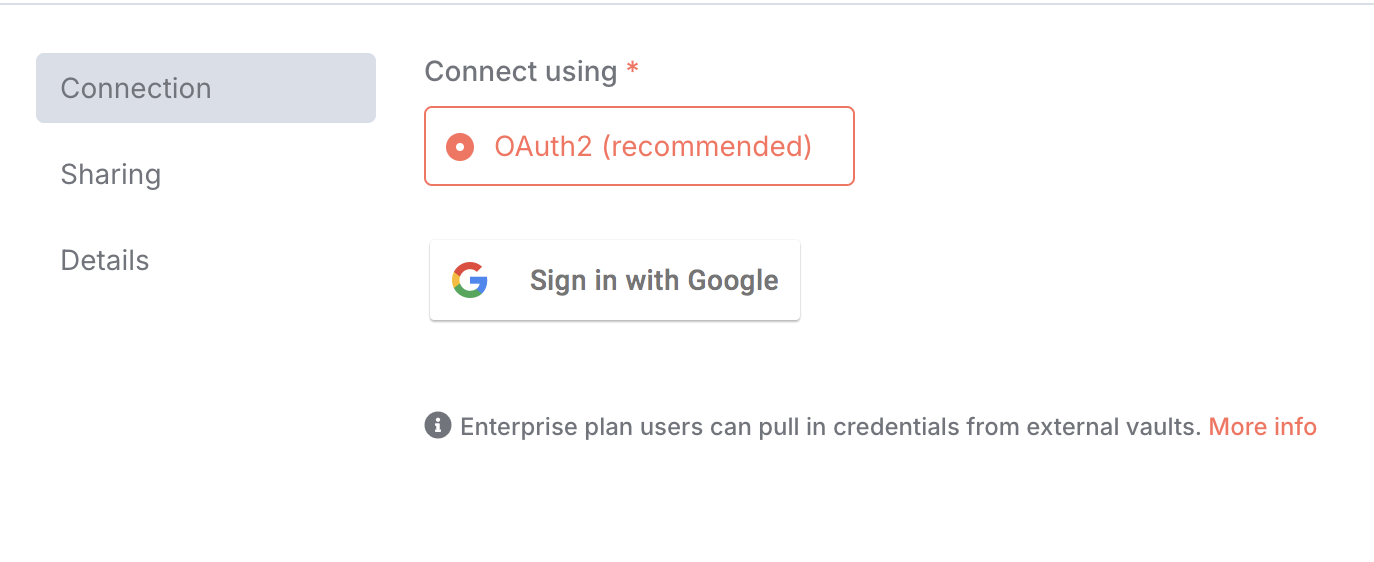 Grant permissions to read and monitor your Google Sheets
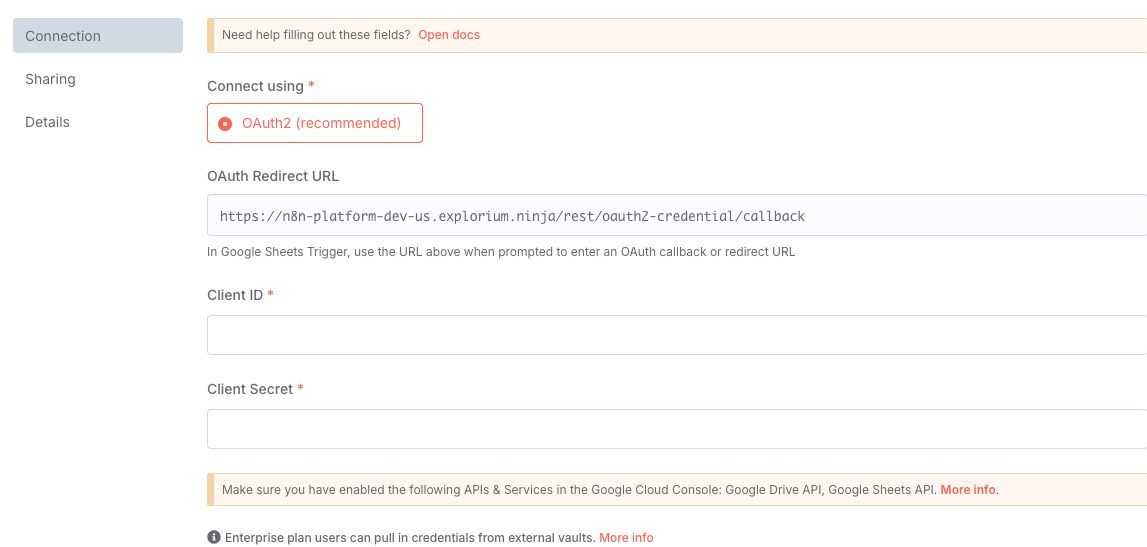
If working on n8n Instance, Follow the OAuth2 authentication process [here](https://docs.n8n.io/integrations/builtin/credentials/google/oauth-generic/#finish-your-n8n-credential)
Fill the Client ID and Client Secret fields
Grant permissions to read and monitor your Google Sheets
If working on n8n Instance, Follow the OAuth2 authentication process [here](https://docs.n8n.io/integrations/builtin/credentials/google/oauth-generic/#finish-your-n8n-credential)
Fill the Client ID and Client Secret fields
 Save the credentials
#### Google Sheets Update Credentials:
Click on the **Update Company Row** node
Under Credentials, select the same credentials or create new ones (The same you did above)
Ensure permissions include write access to your sheets
##
### Step 4: Configure Anthropic Credentials
Click on the **Anthropic Chat Model** node
Under Credentials, click **Create New**
Enter your Anthropic API key
Save the credentials
#### Google Sheets Update Credentials:
Click on the **Update Company Row** node
Under Credentials, select the same credentials or create new ones (The same you did above)
Ensure permissions include write access to your sheets
##
### Step 4: Configure Anthropic Credentials
Click on the **Anthropic Chat Model** node
Under Credentials, click **Create New**
Enter your Anthropic API key
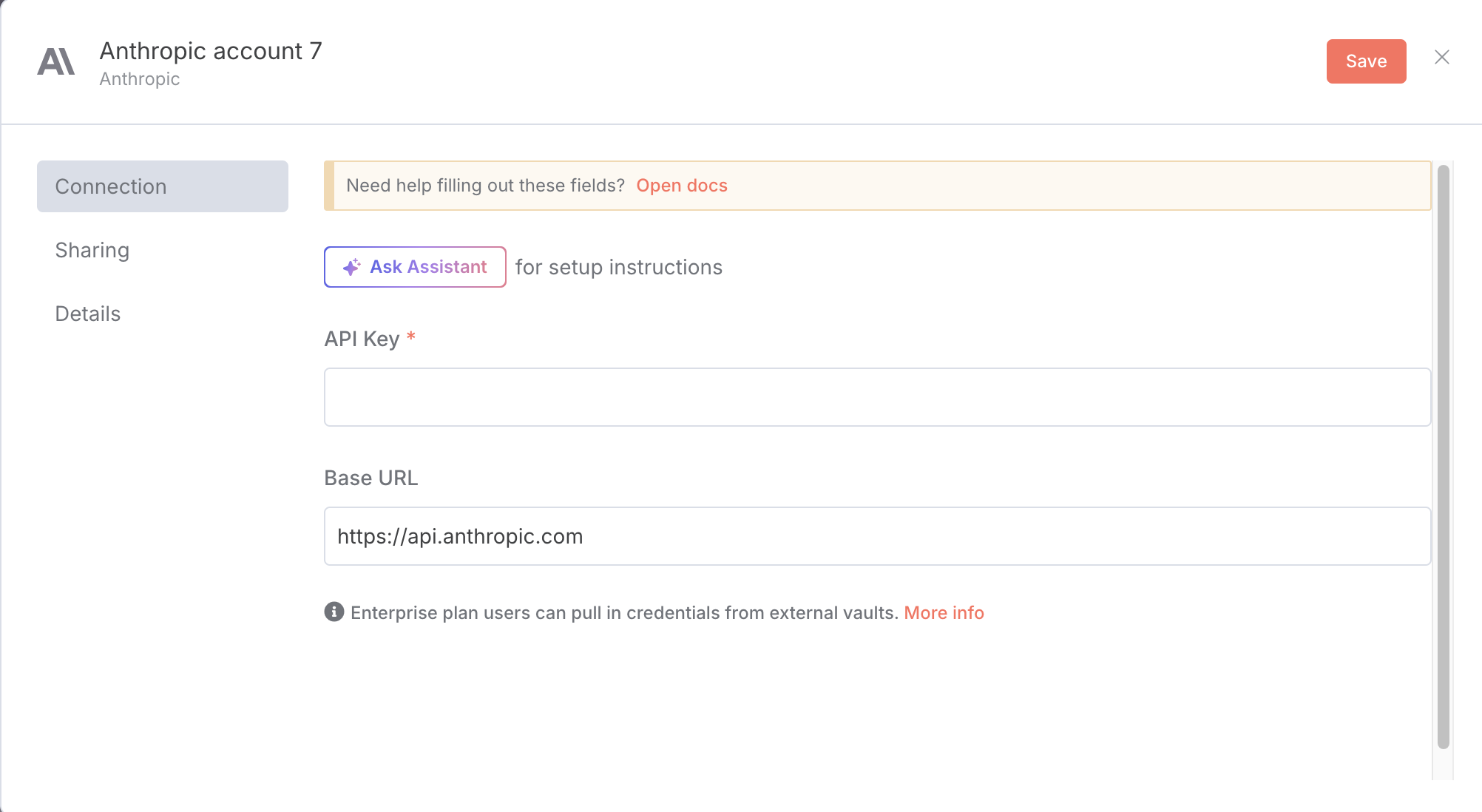 Save the credentials
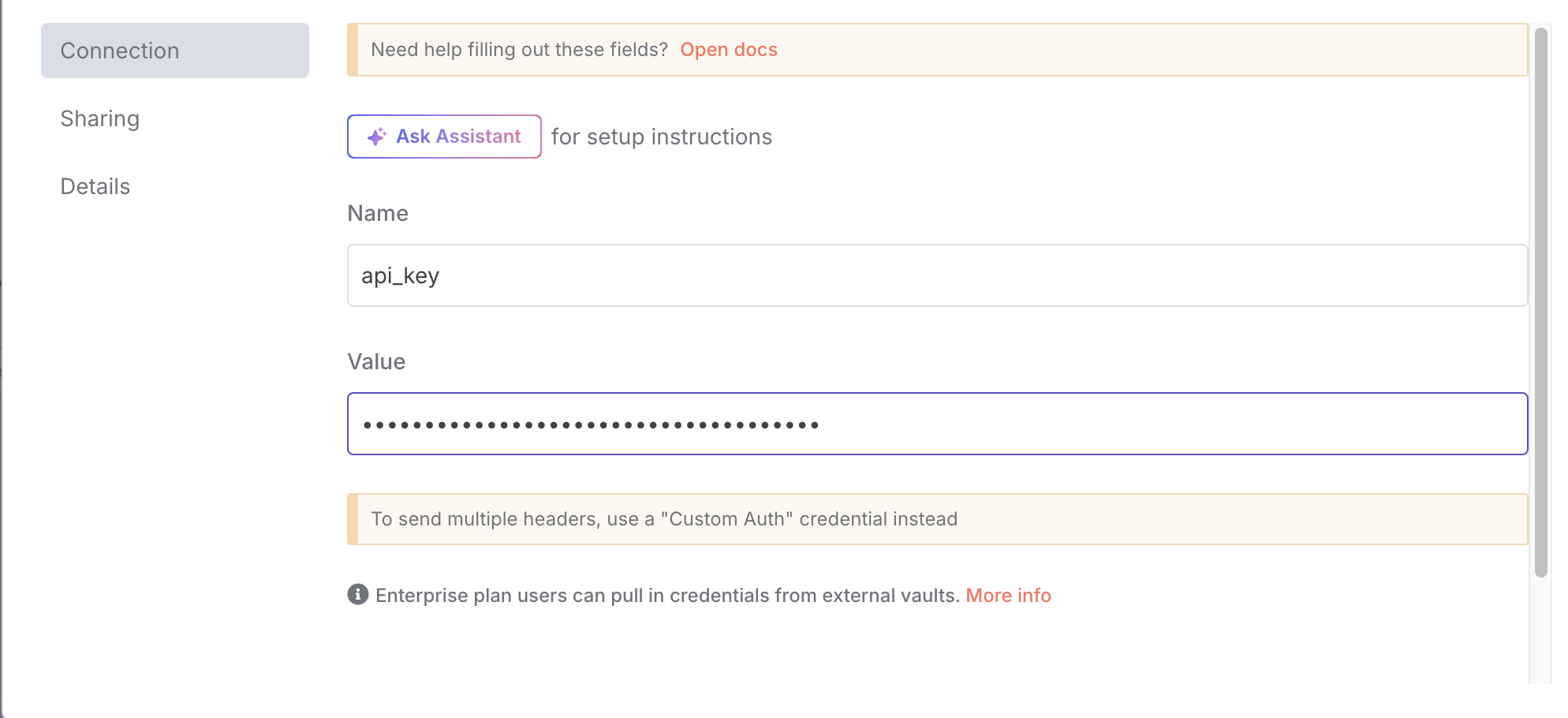
### Step 5: Configure Explorium MCP Credentials
Click on the **MCP Client** node
Under Credentials, click **Create New** (Header Auth)
Fill the Name field with `api_key`
Fill the Value field with your Explorium API Key
Save the credentials
### Step 5: Configure Explorium MCP Credentials
Click on the **MCP Client** node
Under Credentials, click **Create New** (Header Auth)
Fill the Name field with `api_key`
Fill the Value field with your Explorium API Key
 Save the credentials
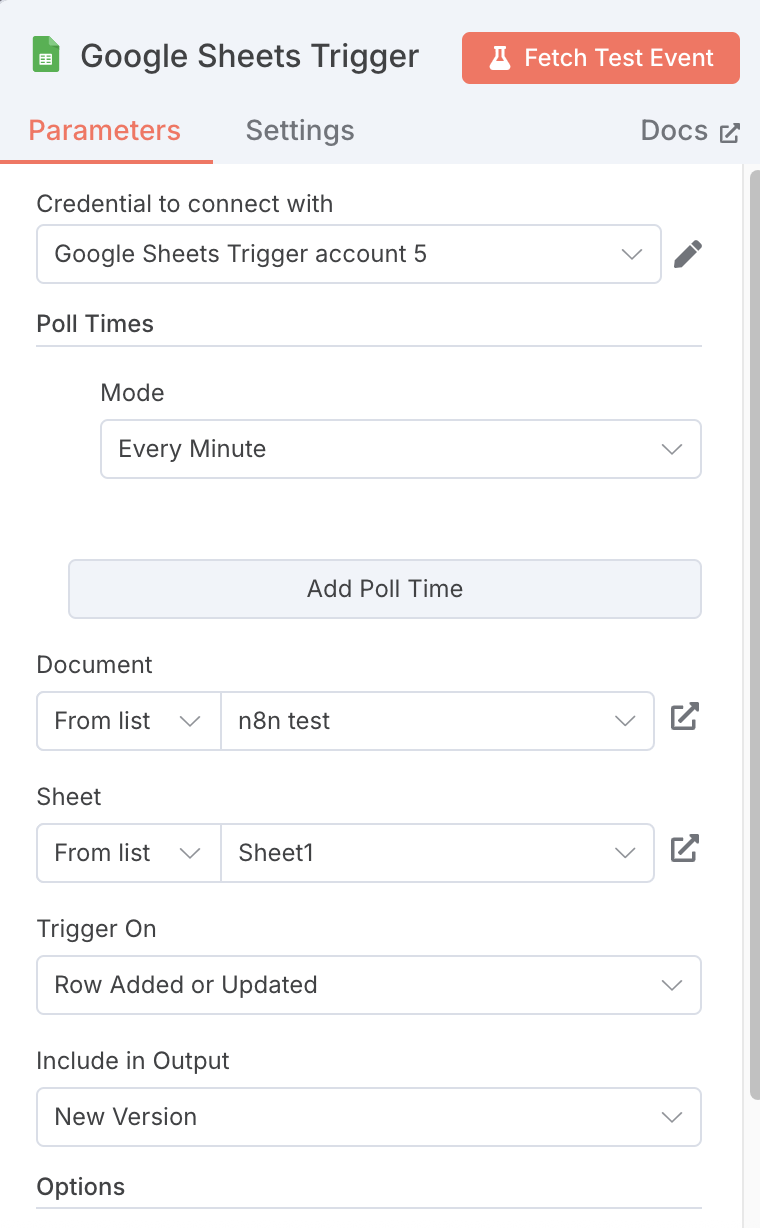
### Step 6: Link Your Google Sheet
In the **Google Sheets Trigger** node:
* Select your Google Sheet from the dropdown
* Select the worksheet (usually "Sheet1")
Save the credentials
### Step 6: Link Your Google Sheet
In the **Google Sheets Trigger** node:
* Select your Google Sheet from the dropdown
* Select the worksheet (usually "Sheet1")
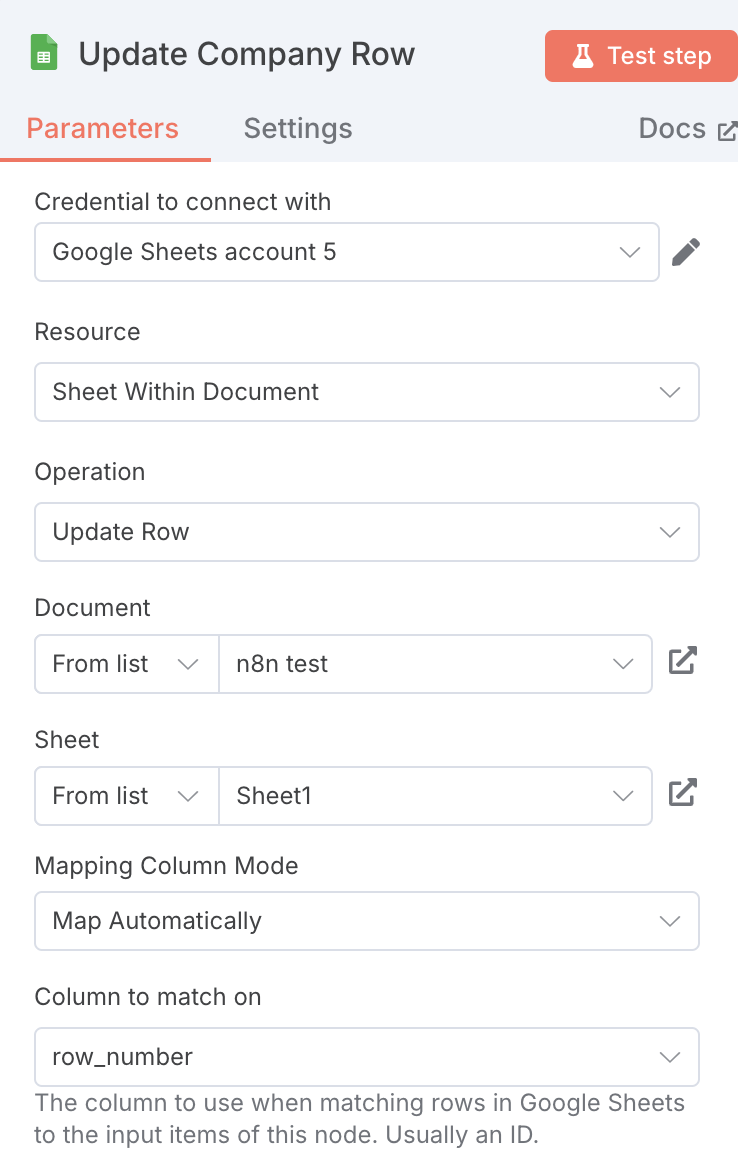
 In the **Update Company Row** node:
* Select the same Google Sheet and worksheet
* Ensure the matching column is set to `row_number`
In the **Update Company Row** node:
* Select the same Google Sheet and worksheet
* Ensure the matching column is set to `row_number`
 ### Step 7: Activate the Workflow
Click the **Active** toggle in the top right to activate the workflow
The workflow will now monitor your sheet every minute for changes
## How It Works
### Workflow Process Flow
1. **Google Sheets Trigger**: Polls your sheet every minute for new rows or changes to name/website fields
2. **Filter Valid Rows**: Validates that both company name and website are present
3. **Loop Over Items**: Processes each company individually
4. **AI Agent**: Uses Explorium MCP to:
* Find the company's business ID
* Retrieve firmographic data (revenue, employees, NAICS code)
5. **Format Output**: Structures the data for Google Sheets
6. **Update Company Row**: Writes the enriched data back to the original row
### Trigger Behavior
* **First Activation**: May process all existing rows to establish a baseline
* **Ongoing Operation**: Only processes new rows or rows where name/website fields change
* **Polling Frequency**: Checks for changes every minute
## Usage
### Adding New Companies
Add a new row to your Google Sheet
Fill in the `name` and `website` columns
Within 1 minute, the workflow will automatically:
* Detect the new row
* Enrich the company data
* Update the remaining columns
### Updating Existing Companies
Modify the `name` or `website` field of an existing row
The workflow will re-process that row with the updated information
All enrichment data will be refreshed
### Monitoring Executions
1. In n8n, go to **Executions** to see workflow runs
2. Each execution shows:
* Which rows were processed
* Success/failure status
* Detailed logs for troubleshooting
## Troubleshooting
### Common Issues
**All rows are processed instead of just new/updated ones**
* Ensure the workflow is **activated**, not just run manually
* Manual test runs will process all rows
* First activation may process all rows once
**No data is returned for a company**
* Verify the company name and website are correct
* Check if the company exists in Explorium's database
* Some smaller or newer companies may not have data available
**Workflow isn't triggering**
* Confirm the workflow is activated (Active toggle is ON)
* Check that changes are made to the `name` or `website` columns
* Verify Google Sheets credentials have proper permissions
**Authentication errors**
* Re-authenticate Google Sheets credentials
* Verify Anthropic API key is valid and has credits
* Check Explorium Bearer token is correct and active
### Error Handling
The workflow processes each row individually, so if one company fails to enrich:
* Other rows will still be processed
* The failed row will retain its original data
* Check the execution logs for specific error details
## Best Practices
1. **Data Quality**: Ensure company names and websites are accurate for best results
2. **Website Format**: Include full URLs ([https://example.com](https://example.com/)) rather than just domain names
3. **Batch Processing**: The workflow handles multiple updates efficiently, so you can add several companies at once
4. **Regular Monitoring**: Periodically check execution logs to ensure smooth operation
## API Limits & Considerations
* **Google Sheets API**: Subject to Google's API quotas
* **Anthropic API**: Each enrichment uses Claude Sonnet 4 tokens
* **Explorium MCP**: Rate limits may apply based on your subscription
## Support
For issues specific to:
* **n8n platform**: Consult n8n documentation or community
* **Google Sheets integration**: Check n8n's Google Sheets node documentation
* **Explorium MCP**: Contact Explorium support for API-related issues
* **Anthropic/Claude**: Refer to Anthropic's documentation for API issues
## Example Use Cases
1. **Sales Prospecting**: Automatically enrich lead lists with company size and revenue data
2. **Market Research**: Build comprehensive databases of companies in specific industries
3. **Competitive Analysis**: Track and monitor competitor information
4. **Investment Research**: Gather firmographic data for potential investment targets
### Step 7: Activate the Workflow
Click the **Active** toggle in the top right to activate the workflow
The workflow will now monitor your sheet every minute for changes
## How It Works
### Workflow Process Flow
1. **Google Sheets Trigger**: Polls your sheet every minute for new rows or changes to name/website fields
2. **Filter Valid Rows**: Validates that both company name and website are present
3. **Loop Over Items**: Processes each company individually
4. **AI Agent**: Uses Explorium MCP to:
* Find the company's business ID
* Retrieve firmographic data (revenue, employees, NAICS code)
5. **Format Output**: Structures the data for Google Sheets
6. **Update Company Row**: Writes the enriched data back to the original row
### Trigger Behavior
* **First Activation**: May process all existing rows to establish a baseline
* **Ongoing Operation**: Only processes new rows or rows where name/website fields change
* **Polling Frequency**: Checks for changes every minute
## Usage
### Adding New Companies
Add a new row to your Google Sheet
Fill in the `name` and `website` columns
Within 1 minute, the workflow will automatically:
* Detect the new row
* Enrich the company data
* Update the remaining columns
### Updating Existing Companies
Modify the `name` or `website` field of an existing row
The workflow will re-process that row with the updated information
All enrichment data will be refreshed
### Monitoring Executions
1. In n8n, go to **Executions** to see workflow runs
2. Each execution shows:
* Which rows were processed
* Success/failure status
* Detailed logs for troubleshooting
## Troubleshooting
### Common Issues
**All rows are processed instead of just new/updated ones**
* Ensure the workflow is **activated**, not just run manually
* Manual test runs will process all rows
* First activation may process all rows once
**No data is returned for a company**
* Verify the company name and website are correct
* Check if the company exists in Explorium's database
* Some smaller or newer companies may not have data available
**Workflow isn't triggering**
* Confirm the workflow is activated (Active toggle is ON)
* Check that changes are made to the `name` or `website` columns
* Verify Google Sheets credentials have proper permissions
**Authentication errors**
* Re-authenticate Google Sheets credentials
* Verify Anthropic API key is valid and has credits
* Check Explorium Bearer token is correct and active
### Error Handling
The workflow processes each row individually, so if one company fails to enrich:
* Other rows will still be processed
* The failed row will retain its original data
* Check the execution logs for specific error details
## Best Practices
1. **Data Quality**: Ensure company names and websites are accurate for best results
2. **Website Format**: Include full URLs ([https://example.com](https://example.com/)) rather than just domain names
3. **Batch Processing**: The workflow handles multiple updates efficiently, so you can add several companies at once
4. **Regular Monitoring**: Periodically check execution logs to ensure smooth operation
## API Limits & Considerations
* **Google Sheets API**: Subject to Google's API quotas
* **Anthropic API**: Each enrichment uses Claude Sonnet 4 tokens
* **Explorium MCP**: Rate limits may apply based on your subscription
## Support
For issues specific to:
* **n8n platform**: Consult n8n documentation or community
* **Google Sheets integration**: Check n8n's Google Sheets node documentation
* **Explorium MCP**: Contact Explorium support for API-related issues
* **Anthropic/Claude**: Refer to Anthropic's documentation for API issues
## Example Use Cases
1. **Sales Prospecting**: Automatically enrich lead lists with company size and revenue data
2. **Market Research**: Build comprehensive databases of companies in specific industries
3. **Competitive Analysis**: Track and monitor competitor information
4. **Investment Research**: Gather firmographic data for potential investment targets