> ## Documentation Index
> Fetch the complete documentation index at: https://developers.explorium.ai/llms.txt
> Use this file to discover all available pages before exploring further.
# HubSpot Contact Enrichment with Explorium
> Automatically enrich new HubSpot contacts with professional email addresses and phone numbers using Explorium's B2B intelligence platform.
## Template
Download the following json file and import it to a new n8n workflow:
 ## Overview
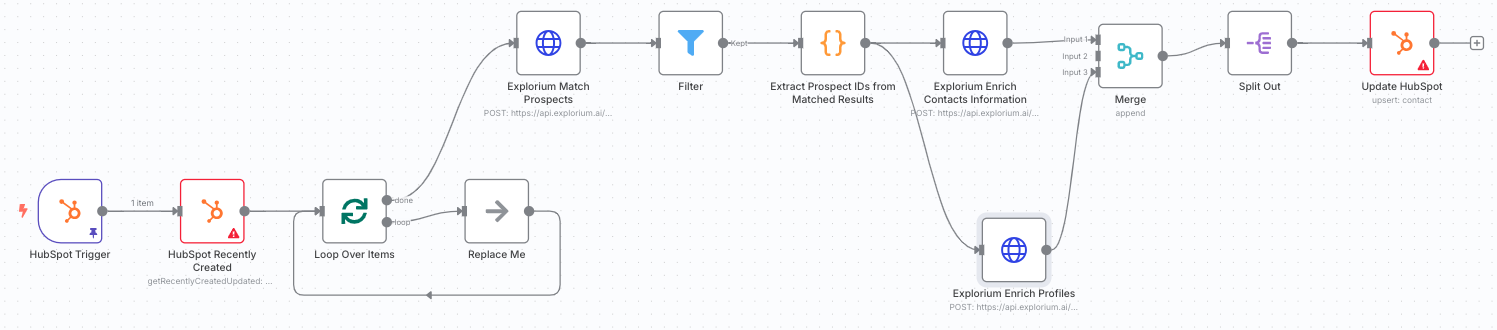
This n8n workflow monitors your HubSpot instance for newly created contacts and automatically enriches them with additional contact information. When a contact is created, the workflow:
Detects the new contact via HubSpot webhook trigger
Retrieves recent contact details from HubSpot
Matches the contact against Explorium's database using name, company, and email
Enriches the contact with professional emails and phone numbers
Updates the HubSpot contact record with discovered information
This automation ensures your sales and marketing teams have complete contact information, improving outreach success rates and data quality.
## Key Features
* **Real-time Webhook Trigger**: Instantly processes new contacts as they're created
* **Intelligent Matching**: Uses multiple data points (name, company, email) for accurate matching
* **Comprehensive Enrichment**: Adds both professional and work emails, plus phone numbers
* **Batch Processing**: Efficiently handles multiple contacts to optimize API usage
* **Smart Data Mapping**: Intelligently maps multiple emails and phone numbers
* **Profile Enrichment**: Optional additional enrichment for deeper contact insights
* **Error Resilience**: Continues processing other contacts if some fail to match
## Prerequisites
Before setting up this workflow, ensure you have:
1. **n8n instance** (self-hosted or cloud)
2. **HubSpot account** with:
* Developer API access (for webhooks)
* Private App or OAuth2 app created
* Contact object permissions (read/write)
3. **Explorium API credentials** (API Key)
4. Understanding of HubSpot contact properties
## HubSpot Requirements
### Required Contact Properties
The workflow uses these HubSpot contact properties:
* `firstname` - Contact's first name
* `lastname` - Contact's last name
* `company` - Associated company name
* `email` - Primary email (read and updated)
* `work_email` - Work email (updated by workflow)
* `phone` - Phone number (updated by workflow)
### API Access Setup
**Create a Private App** in HubSpot:
* Navigate to Settings Integrations Private Apps
* Create new app with Contact read/write scopes
* Copy the Access Token
**Set up Webhooks** (for Developer API):
* Create app in HubSpot Developers portal
* Configure webhook for contact.creation events
* Note the App ID and Developer API Key
### Custom Properties (Optional)
Consider creating custom properties for:
* Multiple email addresses
* Mobile vs. office phone numbers
* Data enrichment timestamps
* Match confidence scores
## Installation & Setup
### Step 1: Import the Workflow
Create a new workflow.
Download the workflow JSON from above.
In your n8n instance, go to **Workflows** **Add Workflow** **Import from File**
Select the JSON file and click **Import**
### Step 2: Configure HubSpot Developer API (Webhook)
Click on the **HubSpot Trigger** node
Under Credentials, click **Create New**
Enter your HubSpot Developer credentials:
* **App ID**: From your HubSpot app
* **Developer API Key**: From your developer account
* **Client Secret**: From your app settings
Save as "HubSpot Developer account"
### Step 3: Configure HubSpot App Token
Click on the **HubSpot Recently Created** node
Under Credentials, click **Create New** (App Token)
Enter your Private App access token
Save as "HubSpot App Token account"
Apply the same credentials to the **Update HubSpot** node
### Step 4: Configure Explorium API Credentials
Click on the **Explorium Match Prospects** node
Under Credentials, click **Create New** (HTTP Header Auth)
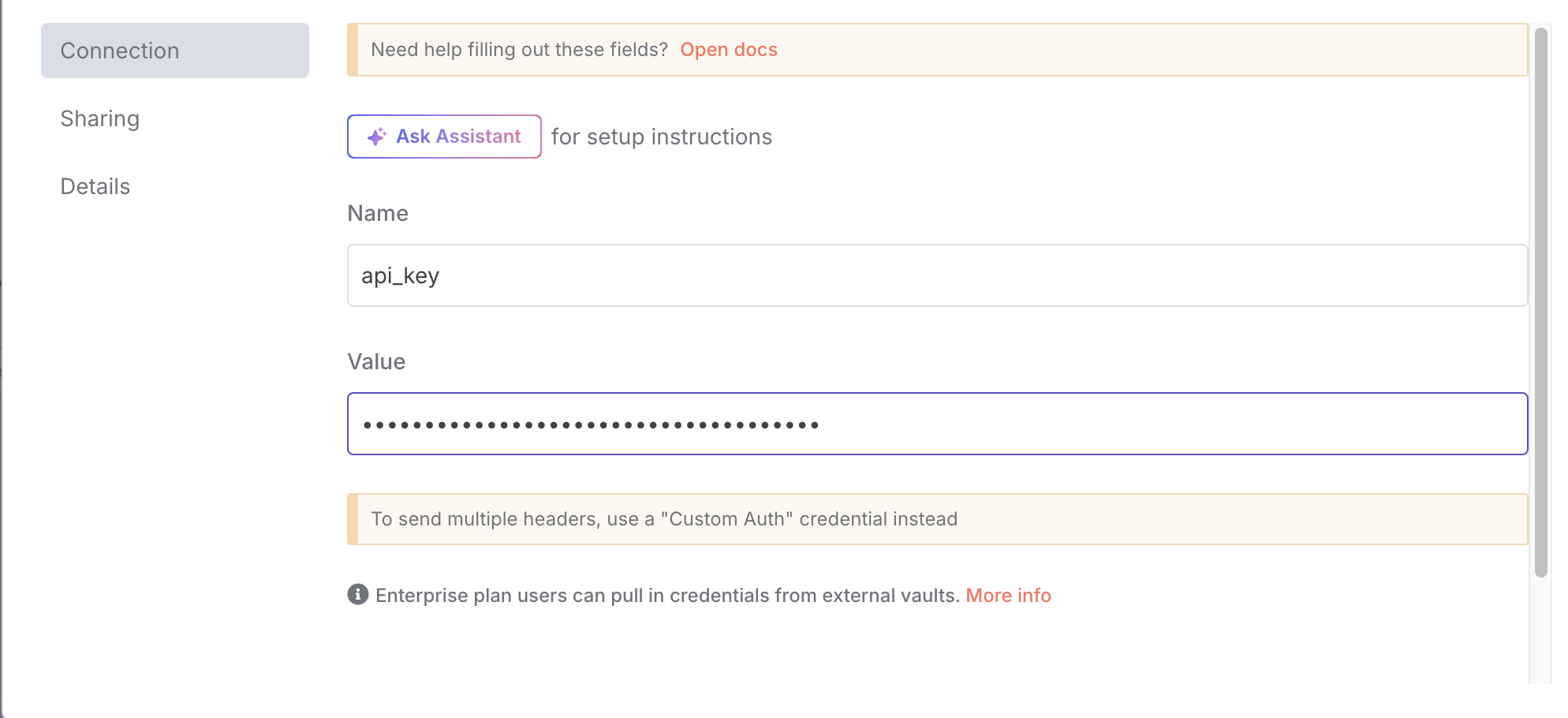
Configure the authentication:
* **Name**: `api_key`
* **Value**: `YOUR_EXPLORIUM_API_TOKEN`
Save as "Header Auth Connection"
## Overview
This n8n workflow monitors your HubSpot instance for newly created contacts and automatically enriches them with additional contact information. When a contact is created, the workflow:
Detects the new contact via HubSpot webhook trigger
Retrieves recent contact details from HubSpot
Matches the contact against Explorium's database using name, company, and email
Enriches the contact with professional emails and phone numbers
Updates the HubSpot contact record with discovered information
This automation ensures your sales and marketing teams have complete contact information, improving outreach success rates and data quality.
## Key Features
* **Real-time Webhook Trigger**: Instantly processes new contacts as they're created
* **Intelligent Matching**: Uses multiple data points (name, company, email) for accurate matching
* **Comprehensive Enrichment**: Adds both professional and work emails, plus phone numbers
* **Batch Processing**: Efficiently handles multiple contacts to optimize API usage
* **Smart Data Mapping**: Intelligently maps multiple emails and phone numbers
* **Profile Enrichment**: Optional additional enrichment for deeper contact insights
* **Error Resilience**: Continues processing other contacts if some fail to match
## Prerequisites
Before setting up this workflow, ensure you have:
1. **n8n instance** (self-hosted or cloud)
2. **HubSpot account** with:
* Developer API access (for webhooks)
* Private App or OAuth2 app created
* Contact object permissions (read/write)
3. **Explorium API credentials** (API Key)
4. Understanding of HubSpot contact properties
## HubSpot Requirements
### Required Contact Properties
The workflow uses these HubSpot contact properties:
* `firstname` - Contact's first name
* `lastname` - Contact's last name
* `company` - Associated company name
* `email` - Primary email (read and updated)
* `work_email` - Work email (updated by workflow)
* `phone` - Phone number (updated by workflow)
### API Access Setup
**Create a Private App** in HubSpot:
* Navigate to Settings Integrations Private Apps
* Create new app with Contact read/write scopes
* Copy the Access Token
**Set up Webhooks** (for Developer API):
* Create app in HubSpot Developers portal
* Configure webhook for contact.creation events
* Note the App ID and Developer API Key
### Custom Properties (Optional)
Consider creating custom properties for:
* Multiple email addresses
* Mobile vs. office phone numbers
* Data enrichment timestamps
* Match confidence scores
## Installation & Setup
### Step 1: Import the Workflow
Create a new workflow.
Download the workflow JSON from above.
In your n8n instance, go to **Workflows** **Add Workflow** **Import from File**
Select the JSON file and click **Import**
### Step 2: Configure HubSpot Developer API (Webhook)
Click on the **HubSpot Trigger** node
Under Credentials, click **Create New**
Enter your HubSpot Developer credentials:
* **App ID**: From your HubSpot app
* **Developer API Key**: From your developer account
* **Client Secret**: From your app settings
Save as "HubSpot Developer account"
### Step 3: Configure HubSpot App Token
Click on the **HubSpot Recently Created** node
Under Credentials, click **Create New** (App Token)
Enter your Private App access token
Save as "HubSpot App Token account"
Apply the same credentials to the **Update HubSpot** node
### Step 4: Configure Explorium API Credentials
Click on the **Explorium Match Prospects** node
Under Credentials, click **Create New** (HTTP Header Auth)
Configure the authentication:
* **Name**: `api_key`
* **Value**: `YOUR_EXPLORIUM_API_TOKEN`
Save as "Header Auth Connection"
 Apply to all Explorium nodes:
1. Explorium Enrich Contacts Information
2. Explorium Enrich Profiles
### Step 5: Configure Webhook Subscription
In HubSpot Developers portal:
* Go to your app's webhook settings
* Add subscription for `contact.creation` events
* Set the target URL from the HubSpot Trigger node
* Activate the subscription
### Step 6: Activate the Workflow
Save the workflow
Toggle the **Active** switch to ON
The webhook is now listening for new contacts
## How It Works
### Workflow Process Flow
```mermaid theme={null}
flowchart TD
A["New Contact Created"] --> B["HubSpot Webhook Trigger"]
B --> C["Get Recent Contacts"]
C --> D["Loop Over Items"]
D --> E["Match in Explorium"]
E --> F{"Match Found?"}
F -->|Yes| G["Extract Prospect IDs"]
F -->|No| H["Continue Loop"]
G --> I["Enrich Contact Info"]
G --> J["Enrich Profile Data"]
I --> K["Merge Results"]
J --> K
K --> L["Update HubSpot Contact"]
L --> D
H --> D
```
### Node Descriptions
1. **HubSpot Trigger**: Webhook that fires when new contacts are created
2. **HubSpot Recently Created**: Fetches details of recently created contacts
3. **Loop Over Items**: Processes contacts in batches of 6
4. **Explorium Match Prospects**: Finds matching person in Explorium database
5. **Filter**: Validates successful matches
6. **Extract Prospect IDs**: Collects matched prospect identifiers
7. **Enrich Contacts Information**: Fetches emails and phone numbers
8. **Enrich Profiles**: Gets additional profile data (optional)
9. **Merge**: Combines all enrichment results
10. **Split Out**: Separates individual enriched records
11. **Update HubSpot**: Updates contact with new information
### Data Mapping Logic
The workflow maps Explorium data to HubSpot properties:
| Explorium Data | HubSpot Property | Notes |
| :----------------------------- | :----------------- | :---------------------------- |
| `professions_email` | `email` | Primary professional email |
| `emails[].address` | `work_email` | All email addresses joined |
| `phone_numbers[].phone_number` | `phone` | All phones joined with commas |
| `mobile_phone` | `phone` (fallback) | Used if no other phones found |
### Data Processing
The workflow handles complex data scenarios:
* **Multiple emails**: Joins all discovered emails with commas
* **Phone numbers**: Combines all phone numbers into a single field
* **Missing data**: Uses "null" as placeholder for empty fields
* **Name parsing**: Cleans sample data and special characters
## Usage & Operation
### Automatic Processing
Once activated:
Every new contact triggers the webhook immediately
Contact is enriched within seconds
HubSpot record is updated automatically
Process repeats for each new contact
### Manual Testing
To test the workflow:
Use the pinned test data in the HubSpot Trigger node, or
Create a test contact in HubSpot
Monitor the execution in n8n
Verify the contact was updated in HubSpot
### Monitoring Performance
Track workflow health:
Go to **Executions** in n8n
Filter by this workflow
Monitor success rates
Review any failed executions
Check webhook delivery in HubSpot
## Troubleshooting
### Common Issues
**Webhook not triggering**
* Verify webhook subscription is active in HubSpot
* Check the webhook URL is correct and accessible
* Ensure workflow is activated in n8n
* Test webhook delivery in HubSpot developers portal
**Contacts not matching**
* Verify contact has firstname, lastname, and company
* Check for typos or abbreviations in company names
* Some individuals may not be in Explorium's database
* Email matching improves accuracy significantly
**Updates failing in HubSpot**
* Check API token has contact write permissions
* Verify property names exist in HubSpot
* Ensure rate limits haven't been exceeded
* Check for validation rules on properties
**Missing enrichment data**
* Not all prospects have all data types
* Phone numbers may be less available than emails
* Profile enrichment is optional and may not always return data
Error HandlingBuilt-in error resilience:
* Failed matches don't block other contacts
* Each batch processes independently
* Partial enrichment is possible
* All errors are logged for review
Debugging Tips
1. **Check webhook logs**: HubSpot shows delivery attempts
2. **Review executions**: n8n logs show detailed error messages
3. **Test with pinned data**: Use the sample data for isolated testing
4. **Verify API responses**: Check Explorium API returns expected data
## Best Practices
### Data Quality
1. **Complete contact records**: Ensure name and company are populated
2. **Standardize company names**: Use official names, not abbreviations
3. **Include existing emails**: Improves match accuracy
4. **Regular data hygiene**: Clean up test and invalid contacts
### Performance Optimization
1. **Batch size**: 6 is optimal for rate limits
2. **Webhook reliability**: Monitor delivery success
3. **API quotas**: Track usage in both platforms
4. **Execution history**: Regularly clean old executions
### Compliance & Privacy
1. **GDPR compliance**: Ensure lawful basis for enrichment
2. **Data minimization**: Only enrich necessary fields
3. **Access controls**: Limit who can modify enriched data
4. **Audit trail**: Document enrichment for compliance
## Customization Options
### Additional Enrichment
Extend with more Explorium data:
* Job titles and departments
* Social media profiles
* Professional experience
* Skills and interests
* Company information
### Enhanced Processing
Add workflow logic for:
* Lead scoring based on enrichment
* Routing based on data quality
* Notifications for high-value matches
* Custom field mapping
Integration ExtensionsConnect to other systems:
* Sync enriched data to CRM
* Trigger marketing automation
* Update data warehouse
* Send notifications to Slack
## API Considerations
### HubSpot Limits
* **API calls**: Monitor daily limits
* **Webhook payload**: Max 200 contacts per trigger
* **Rate limits**: 100 requests per 10 seconds
* **Property limits**: Max 1000 custom properties
### Explorium Limits
* **Match API**: Batched for efficiency
* **Enrichment calls**: Two parallel enrichments
* **Rate limits**: Based on your plan
* **Data freshness**: Real-time matching
### Architecture Considerations
This workflow integrates with:
* HubSpot workflows and automation
* Marketing campaigns and sequences
* Sales engagement tools
* Reporting and analytics
* Other enrichment services
### Security Best Practices
* **Webhook validation**: Verify requests are from HubSpot
* **Token security**: Rotate API tokens regularly
* **Access control**: Limit workflow modifications
* **Data encryption**: All API calls use HTTPS
* **Audit logging**: Track all enrichments
## Advanced Configuration
### Custom Field Mapping
Modify the Update HubSpot node to map to custom properties:
```javascript JavaScript theme={null}
// Example custom mapping
{
"custom_mobile": "{{ $json.data.mobile_phone }}",
"custom_linkedin": "{{ $json.data.linkedin_url }}",
"enrichment_date": "{{ $now.toISO() }}"
}
```
### Conditional Processing
Add logic to process only certain contacts:
* Filter by contact source
* Check for specific properties
* Validate email domains
* Exclude test contacts
## Support Resources
For assistance:
* **n8n issues**: Check n8n documentation and forums
* **HubSpot API**: Reference HubSpot developers documentation
* **Explorium API**: Contact Explorium support
* **Webhook issues**: Use HubSpot webhook testing tools
Apply to all Explorium nodes:
1. Explorium Enrich Contacts Information
2. Explorium Enrich Profiles
### Step 5: Configure Webhook Subscription
In HubSpot Developers portal:
* Go to your app's webhook settings
* Add subscription for `contact.creation` events
* Set the target URL from the HubSpot Trigger node
* Activate the subscription
### Step 6: Activate the Workflow
Save the workflow
Toggle the **Active** switch to ON
The webhook is now listening for new contacts
## How It Works
### Workflow Process Flow
```mermaid theme={null}
flowchart TD
A["New Contact Created"] --> B["HubSpot Webhook Trigger"]
B --> C["Get Recent Contacts"]
C --> D["Loop Over Items"]
D --> E["Match in Explorium"]
E --> F{"Match Found?"}
F -->|Yes| G["Extract Prospect IDs"]
F -->|No| H["Continue Loop"]
G --> I["Enrich Contact Info"]
G --> J["Enrich Profile Data"]
I --> K["Merge Results"]
J --> K
K --> L["Update HubSpot Contact"]
L --> D
H --> D
```
### Node Descriptions
1. **HubSpot Trigger**: Webhook that fires when new contacts are created
2. **HubSpot Recently Created**: Fetches details of recently created contacts
3. **Loop Over Items**: Processes contacts in batches of 6
4. **Explorium Match Prospects**: Finds matching person in Explorium database
5. **Filter**: Validates successful matches
6. **Extract Prospect IDs**: Collects matched prospect identifiers
7. **Enrich Contacts Information**: Fetches emails and phone numbers
8. **Enrich Profiles**: Gets additional profile data (optional)
9. **Merge**: Combines all enrichment results
10. **Split Out**: Separates individual enriched records
11. **Update HubSpot**: Updates contact with new information
### Data Mapping Logic
The workflow maps Explorium data to HubSpot properties:
| Explorium Data | HubSpot Property | Notes |
| :----------------------------- | :----------------- | :---------------------------- |
| `professions_email` | `email` | Primary professional email |
| `emails[].address` | `work_email` | All email addresses joined |
| `phone_numbers[].phone_number` | `phone` | All phones joined with commas |
| `mobile_phone` | `phone` (fallback) | Used if no other phones found |
### Data Processing
The workflow handles complex data scenarios:
* **Multiple emails**: Joins all discovered emails with commas
* **Phone numbers**: Combines all phone numbers into a single field
* **Missing data**: Uses "null" as placeholder for empty fields
* **Name parsing**: Cleans sample data and special characters
## Usage & Operation
### Automatic Processing
Once activated:
Every new contact triggers the webhook immediately
Contact is enriched within seconds
HubSpot record is updated automatically
Process repeats for each new contact
### Manual Testing
To test the workflow:
Use the pinned test data in the HubSpot Trigger node, or
Create a test contact in HubSpot
Monitor the execution in n8n
Verify the contact was updated in HubSpot
### Monitoring Performance
Track workflow health:
Go to **Executions** in n8n
Filter by this workflow
Monitor success rates
Review any failed executions
Check webhook delivery in HubSpot
## Troubleshooting
### Common Issues
**Webhook not triggering**
* Verify webhook subscription is active in HubSpot
* Check the webhook URL is correct and accessible
* Ensure workflow is activated in n8n
* Test webhook delivery in HubSpot developers portal
**Contacts not matching**
* Verify contact has firstname, lastname, and company
* Check for typos or abbreviations in company names
* Some individuals may not be in Explorium's database
* Email matching improves accuracy significantly
**Updates failing in HubSpot**
* Check API token has contact write permissions
* Verify property names exist in HubSpot
* Ensure rate limits haven't been exceeded
* Check for validation rules on properties
**Missing enrichment data**
* Not all prospects have all data types
* Phone numbers may be less available than emails
* Profile enrichment is optional and may not always return data
Error HandlingBuilt-in error resilience:
* Failed matches don't block other contacts
* Each batch processes independently
* Partial enrichment is possible
* All errors are logged for review
Debugging Tips
1. **Check webhook logs**: HubSpot shows delivery attempts
2. **Review executions**: n8n logs show detailed error messages
3. **Test with pinned data**: Use the sample data for isolated testing
4. **Verify API responses**: Check Explorium API returns expected data
## Best Practices
### Data Quality
1. **Complete contact records**: Ensure name and company are populated
2. **Standardize company names**: Use official names, not abbreviations
3. **Include existing emails**: Improves match accuracy
4. **Regular data hygiene**: Clean up test and invalid contacts
### Performance Optimization
1. **Batch size**: 6 is optimal for rate limits
2. **Webhook reliability**: Monitor delivery success
3. **API quotas**: Track usage in both platforms
4. **Execution history**: Regularly clean old executions
### Compliance & Privacy
1. **GDPR compliance**: Ensure lawful basis for enrichment
2. **Data minimization**: Only enrich necessary fields
3. **Access controls**: Limit who can modify enriched data
4. **Audit trail**: Document enrichment for compliance
## Customization Options
### Additional Enrichment
Extend with more Explorium data:
* Job titles and departments
* Social media profiles
* Professional experience
* Skills and interests
* Company information
### Enhanced Processing
Add workflow logic for:
* Lead scoring based on enrichment
* Routing based on data quality
* Notifications for high-value matches
* Custom field mapping
Integration ExtensionsConnect to other systems:
* Sync enriched data to CRM
* Trigger marketing automation
* Update data warehouse
* Send notifications to Slack
## API Considerations
### HubSpot Limits
* **API calls**: Monitor daily limits
* **Webhook payload**: Max 200 contacts per trigger
* **Rate limits**: 100 requests per 10 seconds
* **Property limits**: Max 1000 custom properties
### Explorium Limits
* **Match API**: Batched for efficiency
* **Enrichment calls**: Two parallel enrichments
* **Rate limits**: Based on your plan
* **Data freshness**: Real-time matching
### Architecture Considerations
This workflow integrates with:
* HubSpot workflows and automation
* Marketing campaigns and sequences
* Sales engagement tools
* Reporting and analytics
* Other enrichment services
### Security Best Practices
* **Webhook validation**: Verify requests are from HubSpot
* **Token security**: Rotate API tokens regularly
* **Access control**: Limit workflow modifications
* **Data encryption**: All API calls use HTTPS
* **Audit logging**: Track all enrichments
## Advanced Configuration
### Custom Field Mapping
Modify the Update HubSpot node to map to custom properties:
```javascript JavaScript theme={null}
// Example custom mapping
{
"custom_mobile": "{{ $json.data.mobile_phone }}",
"custom_linkedin": "{{ $json.data.linkedin_url }}",
"enrichment_date": "{{ $now.toISO() }}"
}
```
### Conditional Processing
Add logic to process only certain contacts:
* Filter by contact source
* Check for specific properties
* Validate email domains
* Exclude test contacts
## Support Resources
For assistance:
* **n8n issues**: Check n8n documentation and forums
* **HubSpot API**: Reference HubSpot developers documentation
* **Explorium API**: Contact Explorium support
* **Webhook issues**: Use HubSpot webhook testing tools