> ## Documentation Index
> Fetch the complete documentation index at: https://developers.explorium.ai/llms.txt
> Use this file to discover all available pages before exploring further.
# Integrate with n8n
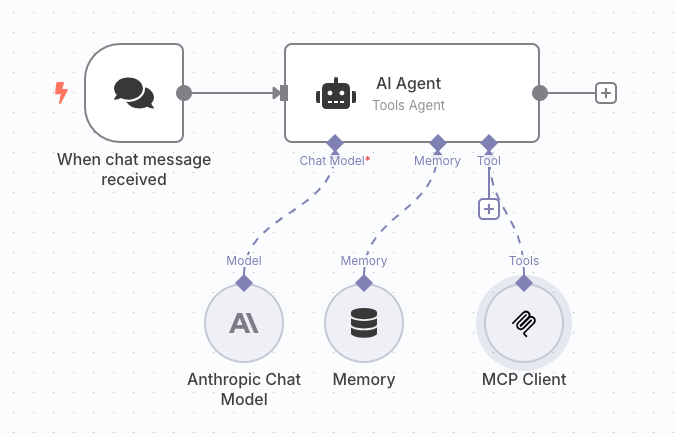
This guide walks you through building a chat-style workflow that lets an n8n AI Agent call Explorium’s Model Context Protocol (MCP) tools, powered by Anthropic’s Claude.
You’ll end up with a flow like this:
 ## 1. Prerequisites
| **Requirement** | **Notes** |
| :-------------------- | :----------------------------------------------------------- |
| n8n @ v1.31+ | Self-hosted or Cloud |
| Explorium **API key** | Get one from your AgentSource Admin Panel |
| Anthropic **API key** | Needed for Claude 3.x Sonnet |
| SSE endpoint | [https://mcp.explorium.ai/mcp](https://mcp.explorium.ai/mcp) |
## 2. Create Your Flow
When chat message received (built-in)
type: Tools Agent
Claude 3.7 Sonnet
simple in-flow memory
calls Explorium tools
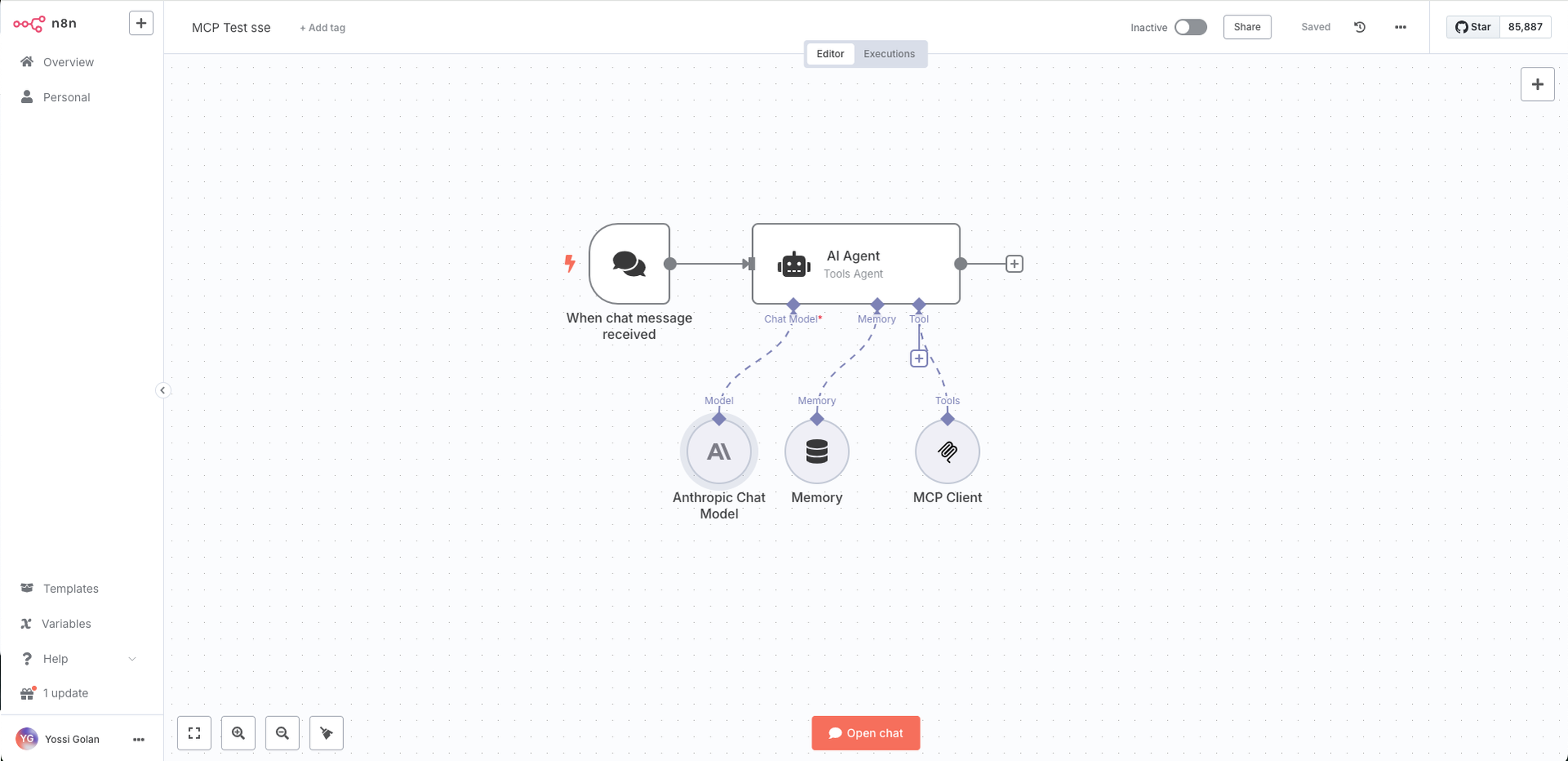
Connect the nodes just like the overview image (dotted lines = resource connections).
## 1. Prerequisites
| **Requirement** | **Notes** |
| :-------------------- | :----------------------------------------------------------- |
| n8n @ v1.31+ | Self-hosted or Cloud |
| Explorium **API key** | Get one from your AgentSource Admin Panel |
| Anthropic **API key** | Needed for Claude 3.x Sonnet |
| SSE endpoint | [https://mcp.explorium.ai/mcp](https://mcp.explorium.ai/mcp) |
## 2. Create Your Flow
When chat message received (built-in)
type: Tools Agent
Claude 3.7 Sonnet
simple in-flow memory
calls Explorium tools
Connect the nodes just like the overview image (dotted lines = resource connections).
 ## 3. Configure Each Node
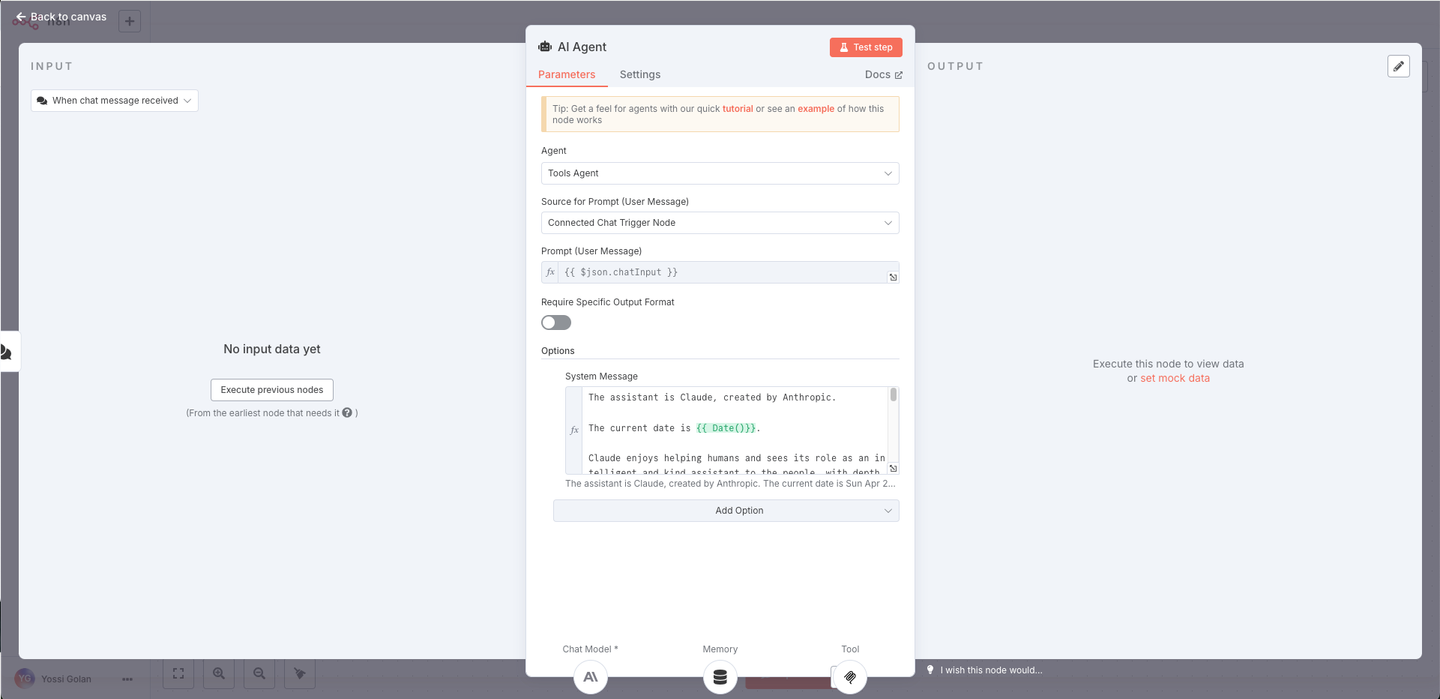
### 3.1 AI Agent configuration
| Setting | Value |
| :---------------- | :---------------------------------------------------------------------------------------------------------------------------------------------------------------------------------------------------------------- |
| Agent | Tools Agent |
| Source for Prompt | Connected Chat Trigger Node |
| System Message | Use a Claude-style system prompt. Example: The assistant is Claude, created by Anthropic. The current date is \{\{ Date() }}.\nYou are powered by Explorium's MCP tools. Always call tools when data is required… |
| Chat Model | Connect the Anthropic Chat Model node |
| Tool | Connect the MCP Client node |
| Memory | Connect the Memory node |
## 3. Configure Each Node
### 3.1 AI Agent configuration
| Setting | Value |
| :---------------- | :---------------------------------------------------------------------------------------------------------------------------------------------------------------------------------------------------------------- |
| Agent | Tools Agent |
| Source for Prompt | Connected Chat Trigger Node |
| System Message | Use a Claude-style system prompt. Example: The assistant is Claude, created by Anthropic. The current date is \{\{ Date() }}.\nYou are powered by Explorium's MCP tools. Always call tools when data is required… |
| Chat Model | Connect the Anthropic Chat Model node |
| Tool | Connect the MCP Client node |
| Memory | Connect the Memory node |
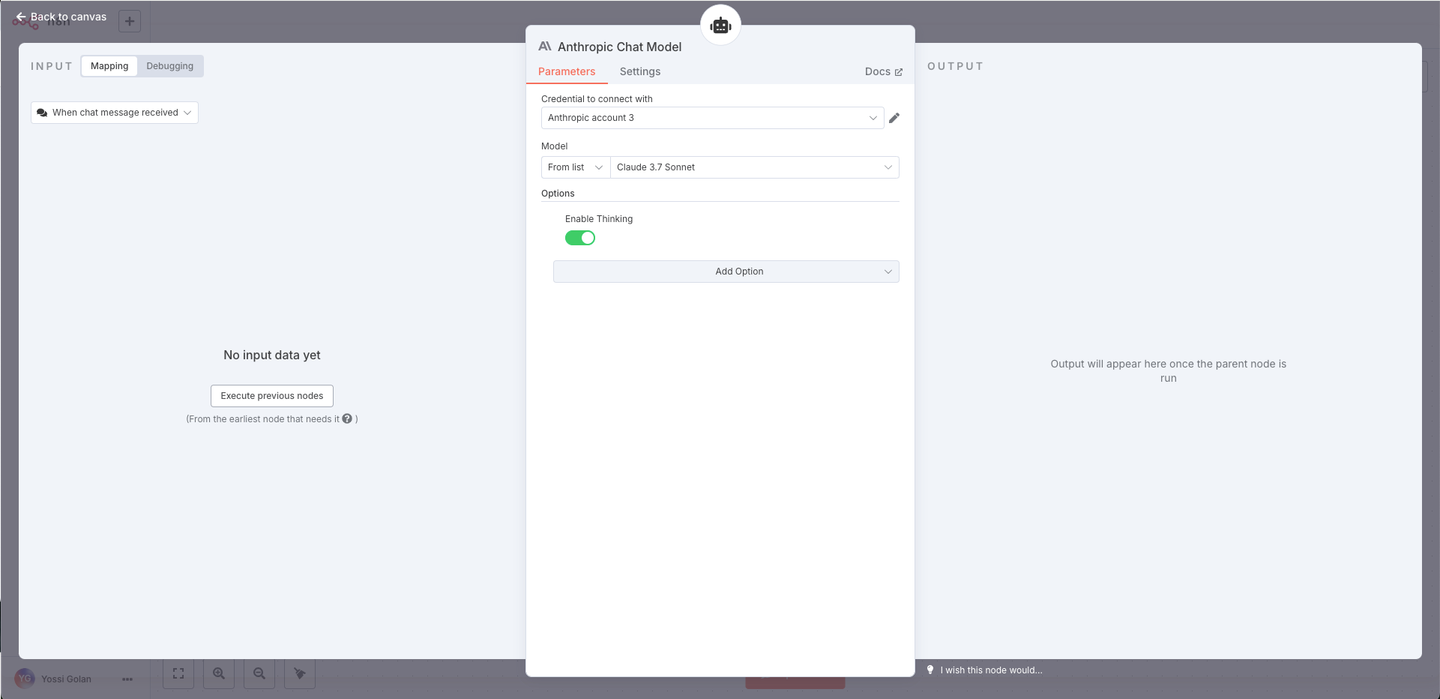
 ### 3.2 Anthropic Chat Model
* **Credential**: the Anthropic account you just created
* **Model**: Claude 3.7 Sonnet
* **Enable Thinking**: On (optional, shows the "thinking" indicator)
### 3.2 Anthropic Chat Model
* **Credential**: the Anthropic account you just created
* **Model**: Claude 3.7 Sonnet
* **Enable Thinking**: On (optional, shows the "thinking" indicator)
 ### 3.3 Anthropic credential
Enter your Anthropic key and test – you should see Connection tested successfully.
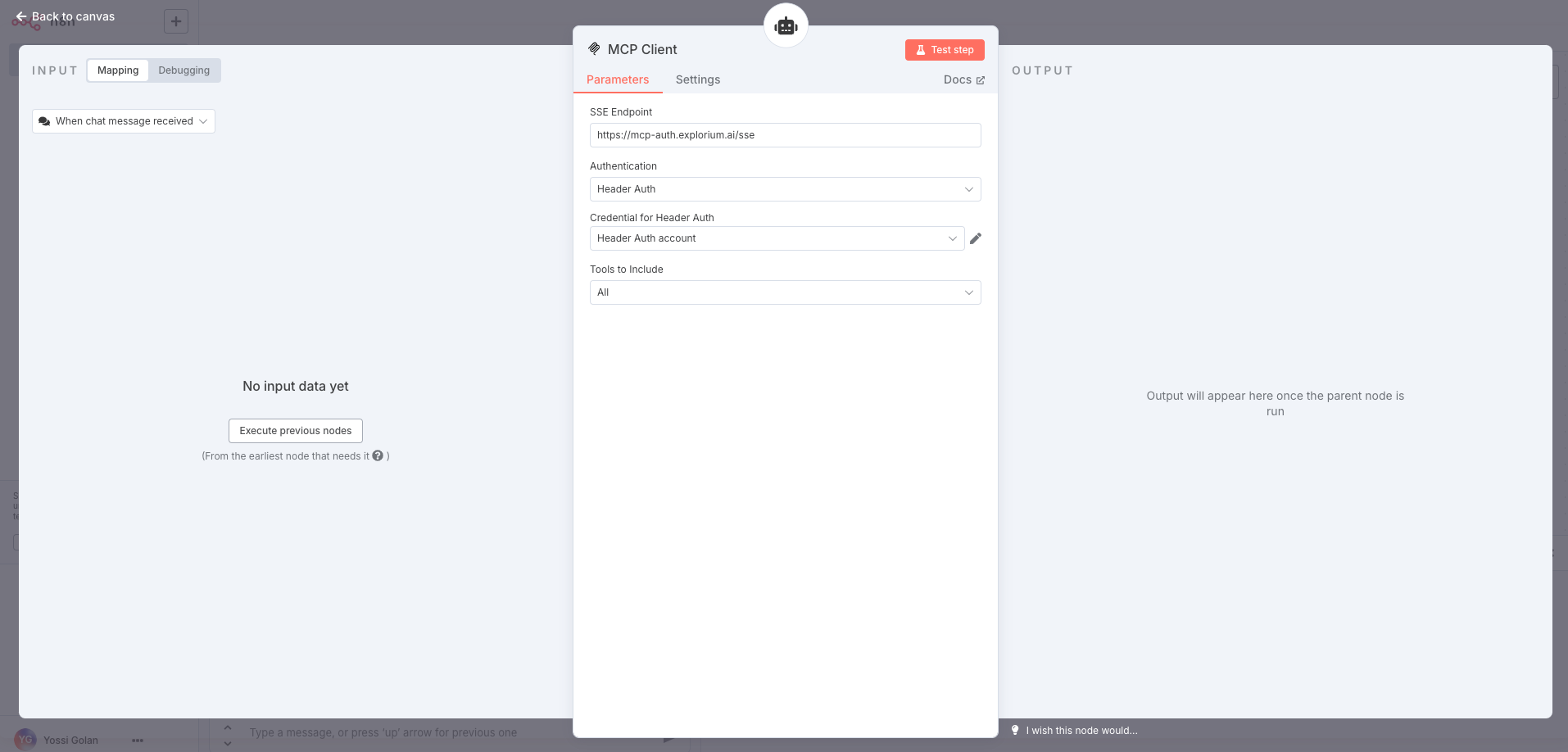
### 3.4 MCP Client node
| Field | Value |
| :------------------------- | :----------------------------------------------------------- |
| SSE Endpoint | [https://mcp.explorium.ai/mcp](https://mcp.explorium.ai/mcp) |
| Authentication | Header Auth |
| Credential for Bearer Auth | Header Auth account |
| Tools to include | All |
### 3.3 Anthropic credential
Enter your Anthropic key and test – you should see Connection tested successfully.
### 3.4 MCP Client node
| Field | Value |
| :------------------------- | :----------------------------------------------------------- |
| SSE Endpoint | [https://mcp.explorium.ai/mcp](https://mcp.explorium.ai/mcp) |
| Authentication | Header Auth |
| Credential for Bearer Auth | Header Auth account |
| Tools to include | All |
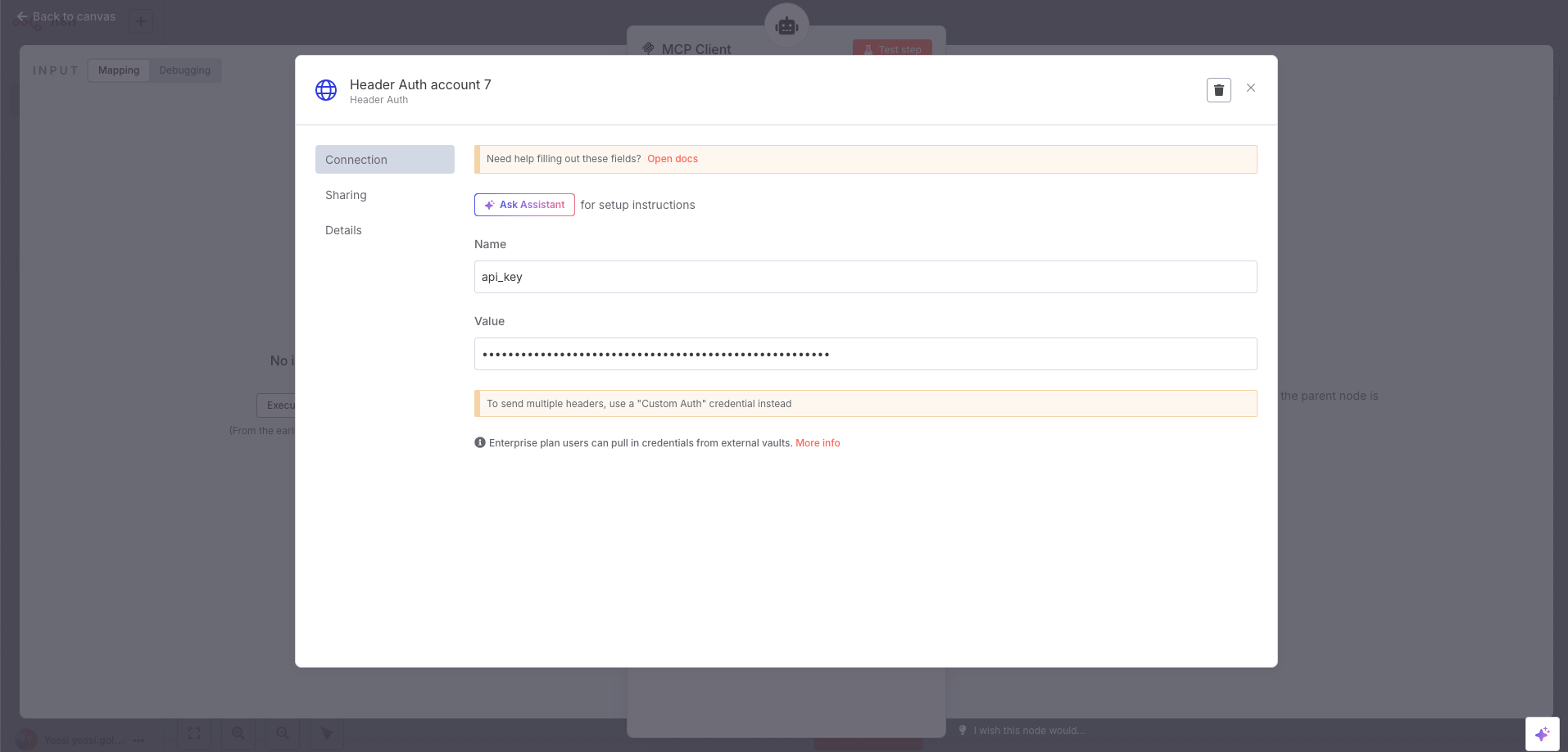
 Fill the header fields:
* Name: `api_key`
* Value: ``
Fill the header fields:
* Name: `api_key`
* Value: ``
 ## 4. Test It Out
Click ** Open chat** at the bottom of the canvas.
Ask something data-centric, e.g.
* "Who is the CMO of Snowflake?"
You should see the MCP Client fire **Match Businesses ➜ Enrich Businesses** and Claude respond with a neatly-formatted answer.
### Happy prospecting!
## 4. Test It Out
Click ** Open chat** at the bottom of the canvas.
Ask something data-centric, e.g.
* "Who is the CMO of Snowflake?"
You should see the MCP Client fire **Match Businesses ➜ Enrich Businesses** and Claude respond with a neatly-formatted answer.
### Happy prospecting!