> ## Documentation Index
> Fetch the complete documentation index at: https://developers.explorium.ai/llms.txt
> Use this file to discover all available pages before exploring further.
# Auto-Refill Credits
> Keep your AgentSource balance topped up automatically so your workflows never stop for lack of credits.
## Overview
**Auto-Refill Credits** automatically replenishes your AgentSource credit balance when it runs low, so long-running API and agent workflows never stop mid-run because you ran out of credits.
You set a threshold and a credit package once. From then on, whenever your remaining balance drops to that threshold, Explorium adds the selected package to your account automatically. You're only charged when a refill is actually triggered, and you can disable it at any time.
Auto-Refill is configured at the **account level** and applies to your AgentSource credit pool. It uses the payment method on file and the credit packages available on the [Pricing](/reference/credits/credit_plans) page.
 ## How it works
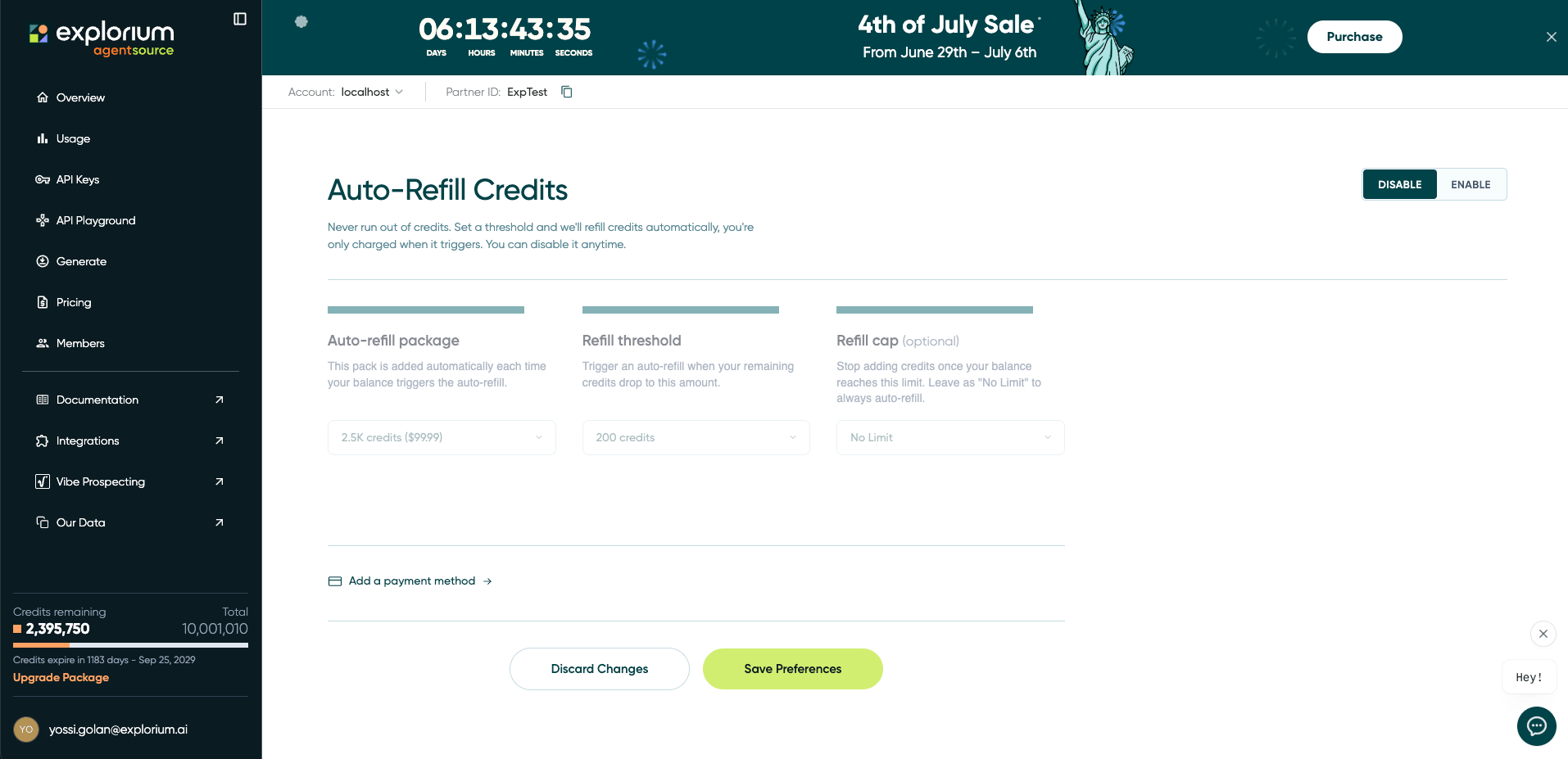
Auto-Refill is controlled by three settings:
| Setting | Required | Description |
| :--------------------------- | :------- | :------------------------------------------------------------------------------------------------------------------------------------------------------------------- |
| **Auto-refill package** | Yes | The credit pack added to your balance each time an auto-refill is triggered. Choose from any of the credit packages available on the Pricing page. |
| **Refill threshold** | Yes | The remaining-credit level that triggers a refill. When your balance drops to this amount, the selected package is added automatically. |
| **Refill cap**\*(optional)\* | No | An upper limit for your balance. Once your balance reaches this amount, auto-refills pause. Leave it as **No Limit** to always refill when the threshold is reached. |
**Example:** with a *Refill threshold* of `200` credits and a `2.5K` *Auto-refill package*, your account tops up by 2,500 credits every time your balance falls to 200 — keeping you above the line without any manual purchases. If you also set a *Refill cap*, refills stop once your balance reaches that cap.
## Enabling Auto-Refill
Go to the **Auto-Refill Credits** page in the AgentSource console, or click **Enable** on the Auto-Refill banner at the bottom of the [Pricing](/reference/credits/credit_plans) page.
Switch the toggle in the top-right of the page from **Disable** to **Enable**.
Select the credit pack that will be added on each refill.
Choose the balance level that should trigger a refill.
Set a maximum balance to stop refilling once reached, or leave it as **No Limit**.
If you don't already have one on file, use **Add a payment method** to add a card. A valid payment method is required for auto-refill to run.
Click **Save Preferences**. Auto-Refill is now active. Use **Discard Changes** to revert any unsaved edits.
A valid payment method is required to enable Auto-Refill. If no payment method is on file, add one before saving your preferences.
## Disabling Auto-Refill
You can turn Auto-Refill off at any time. Open the **Auto-Refill Credits** page, set the toggle to **Disable**, and click **Save Preferences**. No further automatic charges will occur, and your existing balance is unaffected.
## Billing
You are charged **only when an auto-refill is triggered** — never on a fixed schedule. Each refill is billed to the payment method on file at the listed price of the selected package.
Auto-refilled credits follow the same terms as any purchased credits: they are valid for 12 months and are not rolled over once expired.
## FAQ
Only when your balance drops to your refill threshold and a refill is triggered. There is no recurring or scheduled charge — you pay only for the packages that are actually added.
Yes. Each time your balance falls back down to the threshold, another refill is triggered (subject to your refill cap, if set), so heavy usage can result in multiple refills over time.
Auto-refills pause once your balance reaches the cap. Refills will only resume once you re-enable it in the settings page.
No. Turning Auto-Refill on does not add credits immediately — it only triggers a refill once your balance reaches the threshold you set.
Yes. You can update your package, threshold, or cap — or disable Auto-Refill entirely — at any time from the Auto-Refill Credits page. Remember to click **Save Preferences**.
## Related
See the available credit packages you can use for Auto-Refill.
Monitor your remaining balance and consumption.
## How it works
Auto-Refill is controlled by three settings:
| Setting | Required | Description |
| :--------------------------- | :------- | :------------------------------------------------------------------------------------------------------------------------------------------------------------------- |
| **Auto-refill package** | Yes | The credit pack added to your balance each time an auto-refill is triggered. Choose from any of the credit packages available on the Pricing page. |
| **Refill threshold** | Yes | The remaining-credit level that triggers a refill. When your balance drops to this amount, the selected package is added automatically. |
| **Refill cap**\*(optional)\* | No | An upper limit for your balance. Once your balance reaches this amount, auto-refills pause. Leave it as **No Limit** to always refill when the threshold is reached. |
**Example:** with a *Refill threshold* of `200` credits and a `2.5K` *Auto-refill package*, your account tops up by 2,500 credits every time your balance falls to 200 — keeping you above the line without any manual purchases. If you also set a *Refill cap*, refills stop once your balance reaches that cap.
## Enabling Auto-Refill
Go to the **Auto-Refill Credits** page in the AgentSource console, or click **Enable** on the Auto-Refill banner at the bottom of the [Pricing](/reference/credits/credit_plans) page.
Switch the toggle in the top-right of the page from **Disable** to **Enable**.
Select the credit pack that will be added on each refill.
Choose the balance level that should trigger a refill.
Set a maximum balance to stop refilling once reached, or leave it as **No Limit**.
If you don't already have one on file, use **Add a payment method** to add a card. A valid payment method is required for auto-refill to run.
Click **Save Preferences**. Auto-Refill is now active. Use **Discard Changes** to revert any unsaved edits.
A valid payment method is required to enable Auto-Refill. If no payment method is on file, add one before saving your preferences.
## Disabling Auto-Refill
You can turn Auto-Refill off at any time. Open the **Auto-Refill Credits** page, set the toggle to **Disable**, and click **Save Preferences**. No further automatic charges will occur, and your existing balance is unaffected.
## Billing
You are charged **only when an auto-refill is triggered** — never on a fixed schedule. Each refill is billed to the payment method on file at the listed price of the selected package.
Auto-refilled credits follow the same terms as any purchased credits: they are valid for 12 months and are not rolled over once expired.
## FAQ
Only when your balance drops to your refill threshold and a refill is triggered. There is no recurring or scheduled charge — you pay only for the packages that are actually added.
Yes. Each time your balance falls back down to the threshold, another refill is triggered (subject to your refill cap, if set), so heavy usage can result in multiple refills over time.
Auto-refills pause once your balance reaches the cap. Refills will only resume once you re-enable it in the settings page.
No. Turning Auto-Refill on does not add credits immediately — it only triggers a refill once your balance reaches the threshold you set.
Yes. You can update your package, threshold, or cap — or disable Auto-Refill entirely — at any time from the Auto-Refill Credits page. Remember to click **Save Preferences**.
## Related
See the available credit packages you can use for Auto-Refill.
Monitor your remaining balance and consumption.