> ## Documentation Index
> Fetch the complete documentation index at: https://developers.explorium.ai/llms.txt
> Use this file to discover all available pages before exploring further.
# Outreach users: Getting Your API key
## Overview
Your API Key is the **gateway** to Explorium's services, enabling secure and authenticated access to our APIs. Every request made to our system must include a valid API Key assigned to your company.
**Key Facts:**
* Each **company** receives a **single API Key** shared among all users under that organization.
* The API Key is automatically assigned when a **subscription package** is purchased.
**Why is this important?**
* Ensures **secure** access to your account and data.
* Identifies your company for billing and tracking API usage.
* Prevents unauthorized access to Explorium’s services.
## How to Retrieve Your API Key
### Step 1: Access the API Key Management Page
Log in to the **Explorium Admin Portal** at [admin.explorium.ai](https://admin.explorium.ai/signup?partner_id=Outreach).
Navigate to **Access & Authentication** > **Getting Your API Key**.
### Step 2: View Your API Key
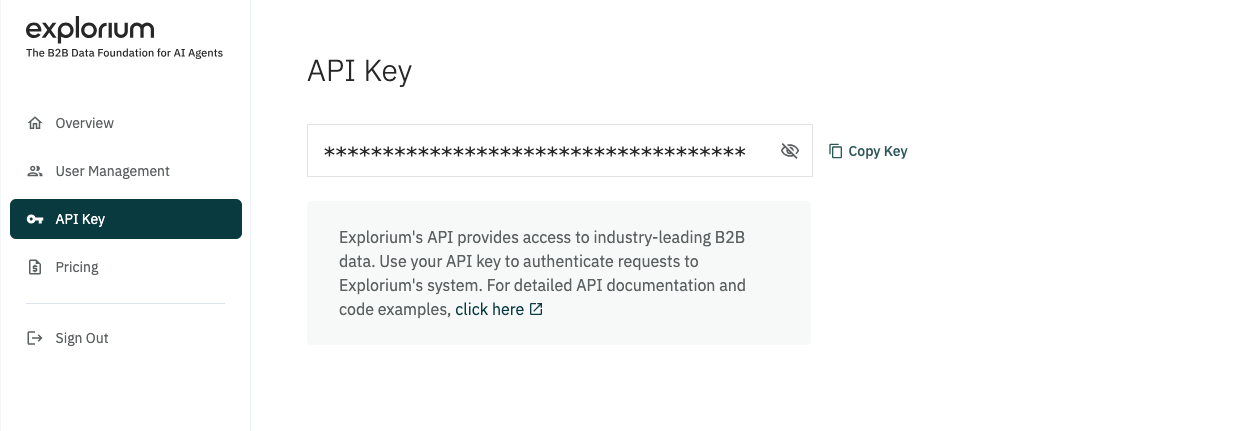 * Your API Key will be displayed in a **masked format**.
* Click the **"Show Key"** button to reveal it.
* Use the **Copy Key** button to copy it securely.
### Step 3: Store Your API Key Securely
* Save the API Key in a **secure location** (e.g., an environment variable, a secret manager, or a vault).
* Do **not** share it in public documents, emails, or repositories.
**Security Tip:**
If you believe your API Key has been exposed, contact **your administrator** to request a key reset.
## API Key Security Best Practices
### **Do:**
* **Store keys securely** using tools like AWS Secrets Manager, HashiCorp Vault, or environment variables.
* **Restrict API key usage** by defining permissions at the company level.
* **Monitor API usage logs** regularly to detect unusual activity.
* **Rotate keys** periodically if your security team enforces it.
### **Don't:**
* **Hardcode API keys** in your application's source code.
* **Share your API Key** in public repositories, documents, or chat tools.
* **Use a single API Key in multiple external environments** unless required.
## Using Your API Key
Once you have retrieved your key, follow these instructions:
Copy the API key from Explorium.
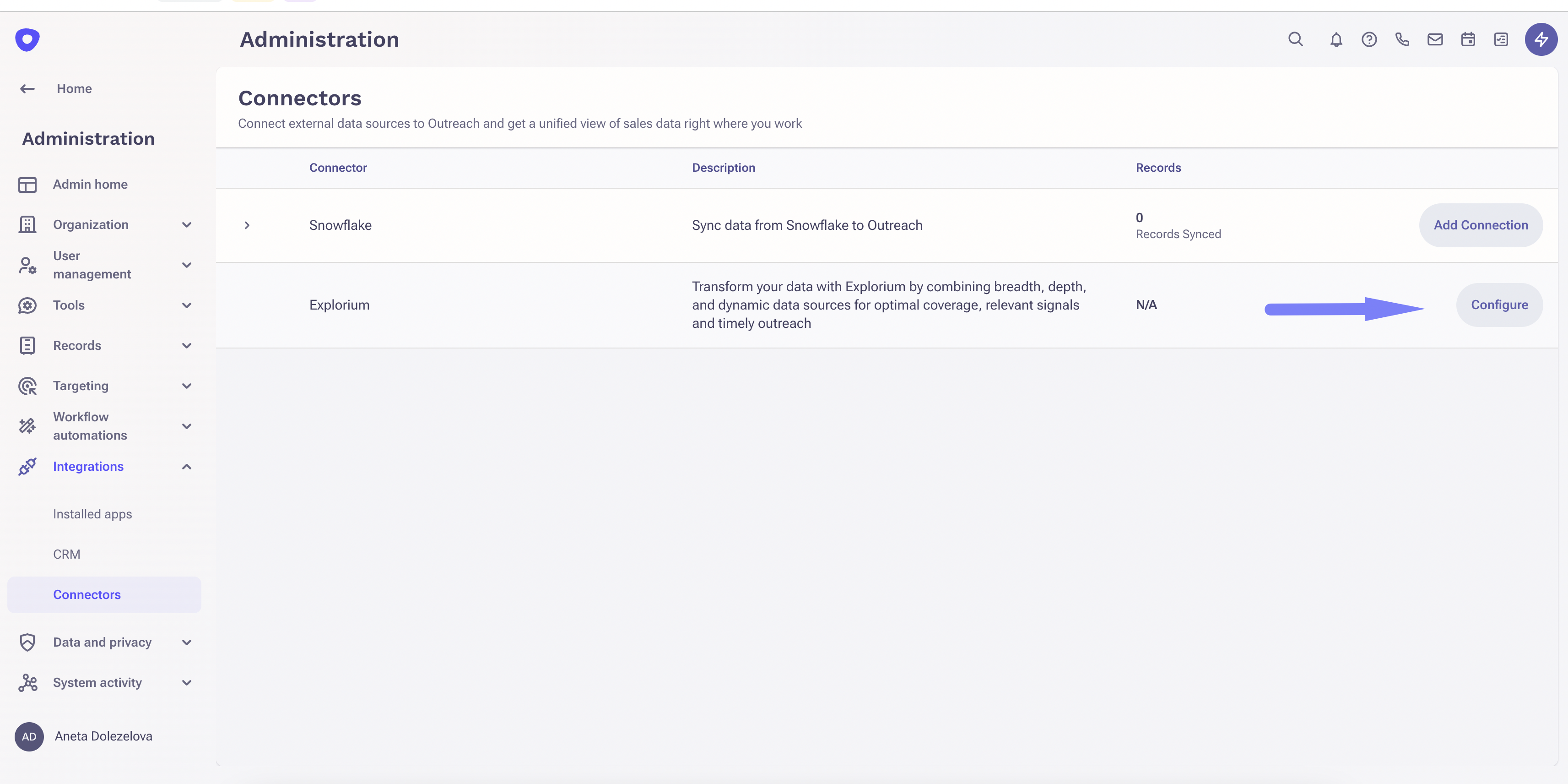
On the Outreach platform - Go to **Administration** > **Integrations** > **Connectors**.
Find **Explorium** and click "**Configure**".
* Your API Key will be displayed in a **masked format**.
* Click the **"Show Key"** button to reveal it.
* Use the **Copy Key** button to copy it securely.
### Step 3: Store Your API Key Securely
* Save the API Key in a **secure location** (e.g., an environment variable, a secret manager, or a vault).
* Do **not** share it in public documents, emails, or repositories.
**Security Tip:**
If you believe your API Key has been exposed, contact **your administrator** to request a key reset.
## API Key Security Best Practices
### **Do:**
* **Store keys securely** using tools like AWS Secrets Manager, HashiCorp Vault, or environment variables.
* **Restrict API key usage** by defining permissions at the company level.
* **Monitor API usage logs** regularly to detect unusual activity.
* **Rotate keys** periodically if your security team enforces it.
### **Don't:**
* **Hardcode API keys** in your application's source code.
* **Share your API Key** in public repositories, documents, or chat tools.
* **Use a single API Key in multiple external environments** unless required.
## Using Your API Key
Once you have retrieved your key, follow these instructions:
Copy the API key from Explorium.
On the Outreach platform - Go to **Administration** > **Integrations** > **Connectors**.
Find **Explorium** and click "**Configure**".
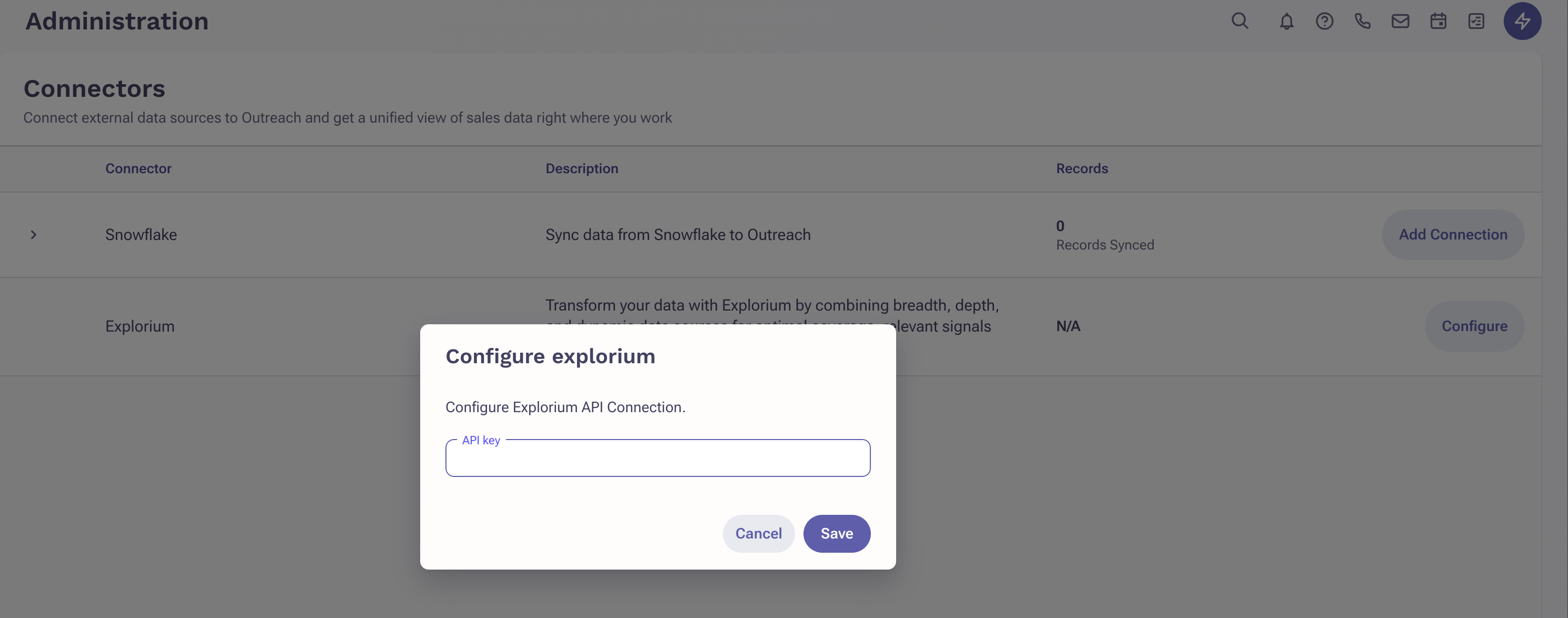
 In the dialog that appears, paste your API key and click "Save".
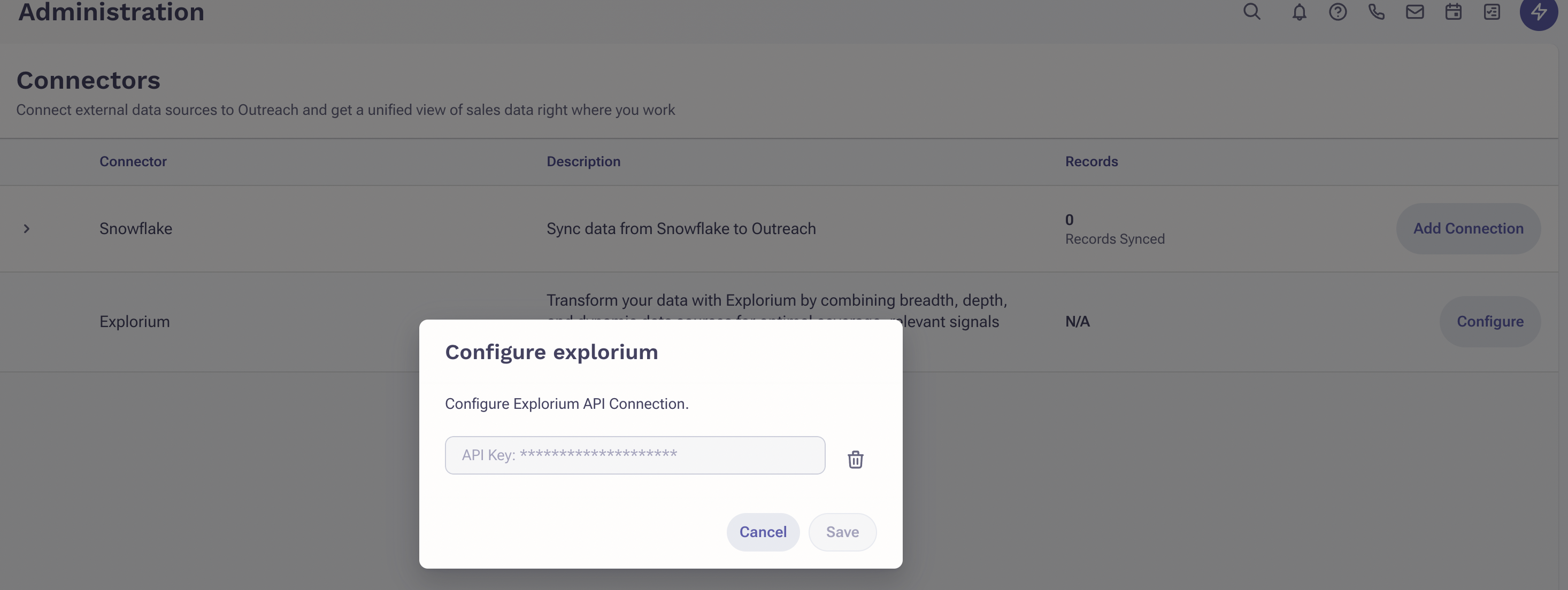
 Your API key is now connected! To update it, click the trash bin icon, insert the new key, and Save.