> ## Documentation Index
> Fetch the complete documentation index at: https://developers.explorium.ai/llms.txt
> Use this file to discover all available pages before exploring further.
# Getting Your API Key
## Overview
Your API Key is the **gateway** to Explorium's services, enabling secure and authenticated access to our APIs. Every request made to our system must include a valid API Key assigned to your company.
**Key Facts:**
* Each **company** receives a **single API Key** shared among all users under that organization.
* The API Key is automatically assigned when a **subscription package** is purchased.
**Why is this important?**
* Ensures **secure** access to your account and data.
* Identifies your company for billing and tracking API usage.
* Prevents unauthorized access to Explorium's services.
## How to Retrieve Your API Key
### Step 1: Access the API Key Management Page
Log in to the **Explorium Admin Portal** at [admin.explorium.ai](https://admin.explorium.ai/).
Navigate to **Access & Authentication** > **Getting Your API Key**.
### Step 2: View Your API Key
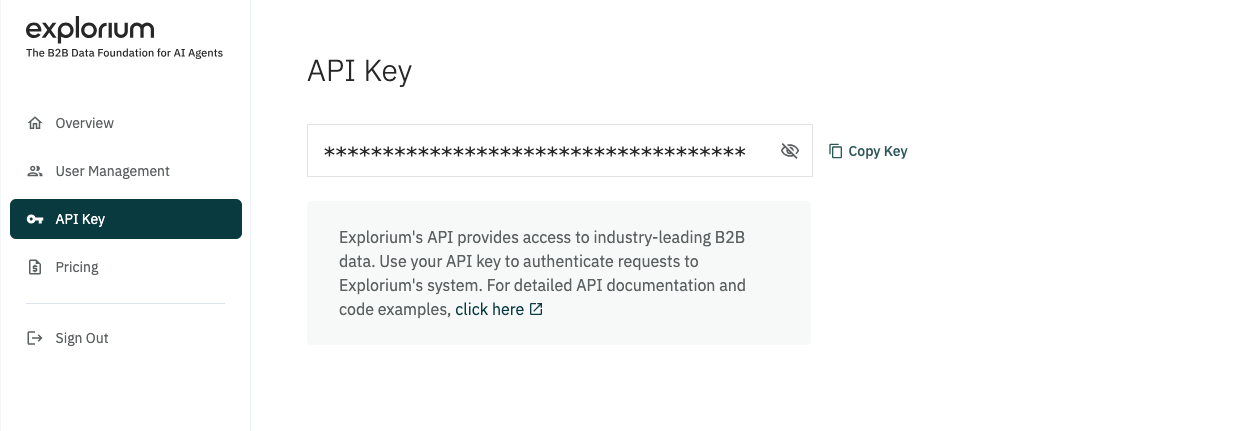 Your API Key will be displayed in a **masked format**.
Click the **"Show Key"** button to reveal it.
Use the **Copy Key** button to copy it securely.
### Step 3: Store Your API Key Securely
* Save the API Key in a **secure location** (e.g., an environment variable, a secret manager, or a vault).
* Do **not** share it in public documents, emails, or repositories.
**Security Tip:**
If you believe your API Key has been exposed, contact **your administrator** to request a key reset.
## API Key Security Best Practices
### Do:
**Do:**
* **Store keys securely** using tools like AWS Secrets Manager, HashiCorp Vault, or environment variables.
* **Restrict API key usage** by defining permissions at the company level.
* **Monitor API usage logs** regularly to detect unusual activity.
* **Rotate keys** periodically if your security team enforces it.
### Don't:
**Don't:**
* **Hardcode API keys** in your application's source code.
* **Share your API Key** in public repositories, documents, or chat tools.
* **Use a single API Key in multiple external environments** unless required.
## Testing Your API Key
Once you have retrieved your key, you can test it with a simple API call:
### Example using cURL:
```shell Bash theme={null}
curl --request POST \
--url https://api.explorium.ai/v1/prospects \
--header 'accept: application/json' \
--header 'api_key: YOUR_API_KEY' \
--header 'content-type: application/json' \
--data '
{
"mode": "full",
"page": 1
}
'
```
### Example using Python:
```python Python theme={null}
import requests
url = "https://api.explorium.ai/v1/prospects"
payload = {
"mode": "full",
"page": 1
}
headers = {
"accept": "application/json",
"content-type": "application/json",
"api_key": "YOUR_API_KEY"
}
```
## Troubleshooting API Key Issues
If you encounter issues with your API Key:
* **Invalid API Key error?** Ensure the key is correct and hasn't expired.
* **Still facing issues?** Contact [support@explorium.ai](mailto:support@explorium.ai) for assistance.
**You're now ready to integrate Explorium's API with your applications!**
Your API Key will be displayed in a **masked format**.
Click the **"Show Key"** button to reveal it.
Use the **Copy Key** button to copy it securely.
### Step 3: Store Your API Key Securely
* Save the API Key in a **secure location** (e.g., an environment variable, a secret manager, or a vault).
* Do **not** share it in public documents, emails, or repositories.
**Security Tip:**
If you believe your API Key has been exposed, contact **your administrator** to request a key reset.
## API Key Security Best Practices
### Do:
**Do:**
* **Store keys securely** using tools like AWS Secrets Manager, HashiCorp Vault, or environment variables.
* **Restrict API key usage** by defining permissions at the company level.
* **Monitor API usage logs** regularly to detect unusual activity.
* **Rotate keys** periodically if your security team enforces it.
### Don't:
**Don't:**
* **Hardcode API keys** in your application's source code.
* **Share your API Key** in public repositories, documents, or chat tools.
* **Use a single API Key in multiple external environments** unless required.
## Testing Your API Key
Once you have retrieved your key, you can test it with a simple API call:
### Example using cURL:
```shell Bash theme={null}
curl --request POST \
--url https://api.explorium.ai/v1/prospects \
--header 'accept: application/json' \
--header 'api_key: YOUR_API_KEY' \
--header 'content-type: application/json' \
--data '
{
"mode": "full",
"page": 1
}
'
```
### Example using Python:
```python Python theme={null}
import requests
url = "https://api.explorium.ai/v1/prospects"
payload = {
"mode": "full",
"page": 1
}
headers = {
"accept": "application/json",
"content-type": "application/json",
"api_key": "YOUR_API_KEY"
}
```
## Troubleshooting API Key Issues
If you encounter issues with your API Key:
* **Invalid API Key error?** Ensure the key is correct and hasn't expired.
* **Still facing issues?** Contact [support@explorium.ai](mailto:support@explorium.ai) for assistance.
**You're now ready to integrate Explorium's API with your applications!**