> ## Documentation Index
> Fetch the complete documentation index at: https://developers.explorium.ai/llms.txt
> Use this file to discover all available pages before exploring further.
# The Hub
## Using The Hub
### Accessing The Hub
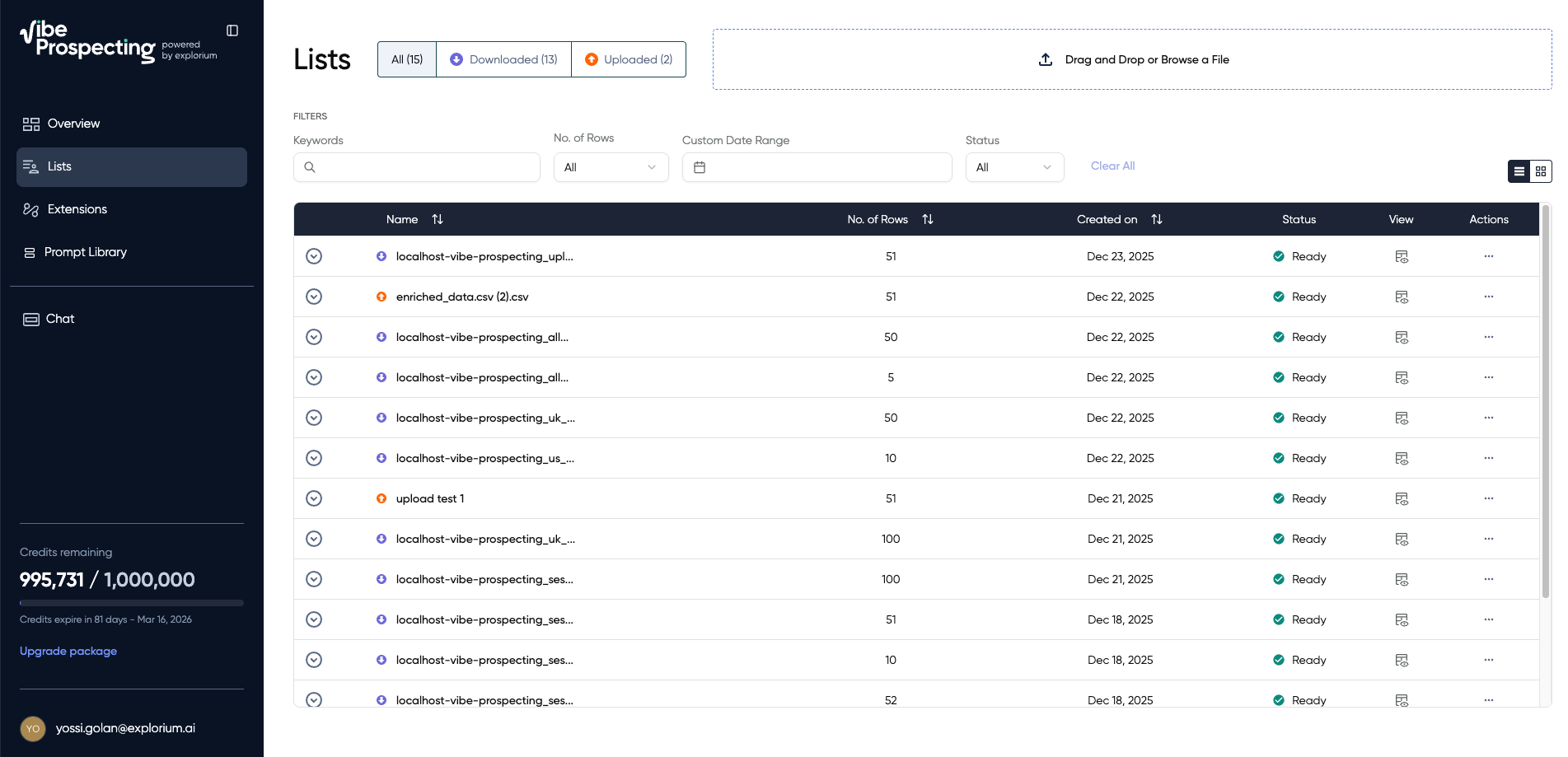 The Hub is your central workspace for managing all prospecting data.
***
### Managing Exported Datasets
**View Your Datasets**
All exported data appears in the Hub with:
* Dataset name (auto-generated based on search)
* Entity count
* Export date
* Credit cost
* Status (ready, processing, error)
**Re-Import Previous Searches**
```
Load my dataset from last week about SaaS CTOs
```
The AI will:
1. Search your Hub for matching datasets
2. Show available options if multiple matches
3. Load the data into your current session
4. Allow you to enrich, filter, or export again
***
### Excluding Entities
**Automatic Exclusion**
Every export automatically adds entities to your exclusion list, preventing duplicates in future searches.
**Manual Exclusion**
```
Exclude all prospects from my "Q4 2024 Outreach" dataset
```
**Using Exclusion Lists**
```
Find new VPs of Sales at fintech companies, but exclude anyone I've already exported
```
AI automatically applies your default exclusion list.
***
### Uploading CSV Files
**Use Cases for CSV Upload:**
1. **Enrich your existing data**: Upload company names/domains to get firmographics, tech stack, contacts
2. **Find contacts at your accounts**: Upload customer list to find decision-makers
3. **Clean and standardize data**: Upload messy data to get standardized Explorium IDs and enriched fields
**How to Upload**
The Hub is your central workspace for managing all prospecting data.
***
### Managing Exported Datasets
**View Your Datasets**
All exported data appears in the Hub with:
* Dataset name (auto-generated based on search)
* Entity count
* Export date
* Credit cost
* Status (ready, processing, error)
**Re-Import Previous Searches**
```
Load my dataset from last week about SaaS CTOs
```
The AI will:
1. Search your Hub for matching datasets
2. Show available options if multiple matches
3. Load the data into your current session
4. Allow you to enrich, filter, or export again
***
### Excluding Entities
**Automatic Exclusion**
Every export automatically adds entities to your exclusion list, preventing duplicates in future searches.
**Manual Exclusion**
```
Exclude all prospects from my "Q4 2024 Outreach" dataset
```
**Using Exclusion Lists**
```
Find new VPs of Sales at fintech companies, but exclude anyone I've already exported
```
AI automatically applies your default exclusion list.
***
### Uploading CSV Files
**Use Cases for CSV Upload:**
1. **Enrich your existing data**: Upload company names/domains to get firmographics, tech stack, contacts
2. **Find contacts at your accounts**: Upload customer list to find decision-makers
3. **Clean and standardize data**: Upload messy data to get standardized Explorium IDs and enriched fields
**How to Upload**
 **Step 1: Prepare Your CSV**
Your CSV should contain at least one of these fields:
For businesses:
```
business_name
business_website
business_domain
business_id
```
For prospects:
```
prospect_full_name
prospect_business_name
prospect_email
prospect_phone_number
prospect_linkedin
prospect_id
```
**Step 2: Upload to Hub**
3. Map your CSV columns to Explorium fields
4. Click "Lists" in the Hub
5. Drag and drop your file or click to browse
6. Review mapping and confirm upload
**Step 3: Process Your Data**
Once uploaded, tell the AI what you want:
```
Find all C-level executives at the companies in my uploaded list
**Step 1: Prepare Your CSV**
Your CSV should contain at least one of these fields:
For businesses:
```
business_name
business_website
business_domain
business_id
```
For prospects:
```
prospect_full_name
prospect_business_name
prospect_email
prospect_phone_number
prospect_linkedin
prospect_id
```
**Step 2: Upload to Hub**
3. Map your CSV columns to Explorium fields
4. Click "Lists" in the Hub
5. Drag and drop your file or click to browse
6. Review mapping and confirm upload
**Step 3: Process Your Data**
Once uploaded, tell the AI what you want:
```
Find all C-level executives at the companies in my uploaded list
```
Or:
```
Enrich my uploaded companies with technographics and funding data
```
**Step 4: Export Results**
Review the sample, approve costs, and export as usual.
***
### Working with Referenced Data
**Refining Previous Searches**
```
enrich my last dataset of SaaS companies with technographics
```
AI enriches your dataset with technographics
**Cross-Referencing Datasets**
```
Find prospects at companies from my "Series B SaaS" dataset who joined in the last 6 months
```
Combines company data from one search with prospect filtering in another.