NoteEvery datetime value in this integration is in UTC timezone.
Imports object’s data from Salesforce to be enriched
The system enables you to pull data from Salesforce into the Enrich module using a defined query. The query will support any type of object in Salesforce, and then you can enrich these objects in the Enrich module, and create an Enriched recipe.Export enrichments from the Enrich module into Salesforce
Based on selected enrichments, you will be able to update the relevant Salesforce’s object. Mapping of the updated fields is done by implicit convention.Periodic and scheduled enrichment
Based on the pre-defined Enrich module recipe, you can define a periodic schedule run to enrich the selected Salesforce objects. The selected objects to be defined use a query, as defined in the Enrich recipe. The objects will be enriched, based on the Signal Studio recipe. The enriched fields will be updated in Salesforce.Connecting to Salesforce
There are three options to connect to a Salesforce connector:- Create a new project
- Edit an existing project connection
- Export data from the Export > Jobs
Creating a Salesforce Connector
1
Click Enrich. The Enrich page is displayed.
2
Click Start new project. The Start a new project screen is displayed.
3
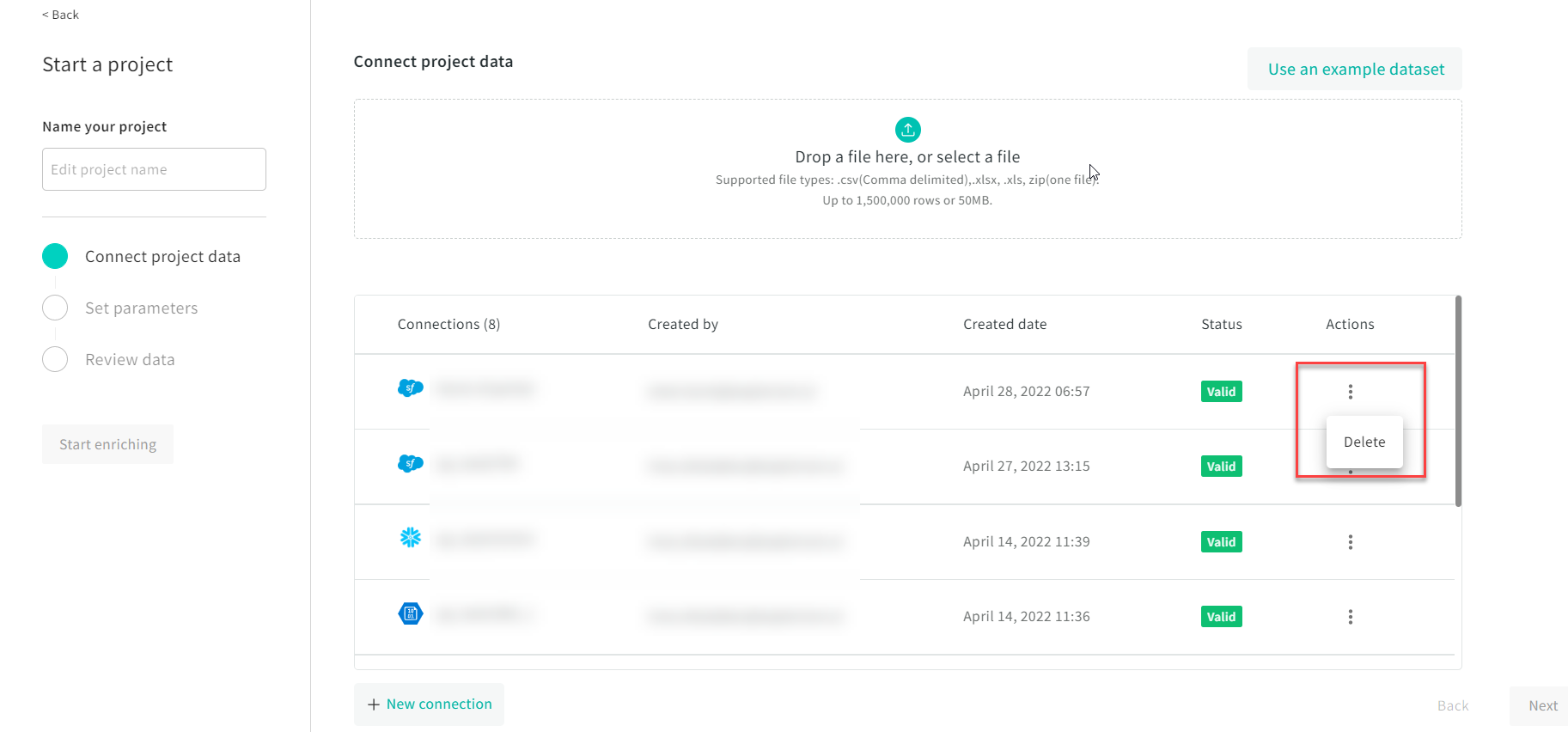
Select an enrichment template, and you have the option of either using your own data, or using a sample dataset.
4
The Connect project data window is displayed.
5
Type in a project name, and click + New Connection. The Create a new connection window is displayed, and select Salesforce.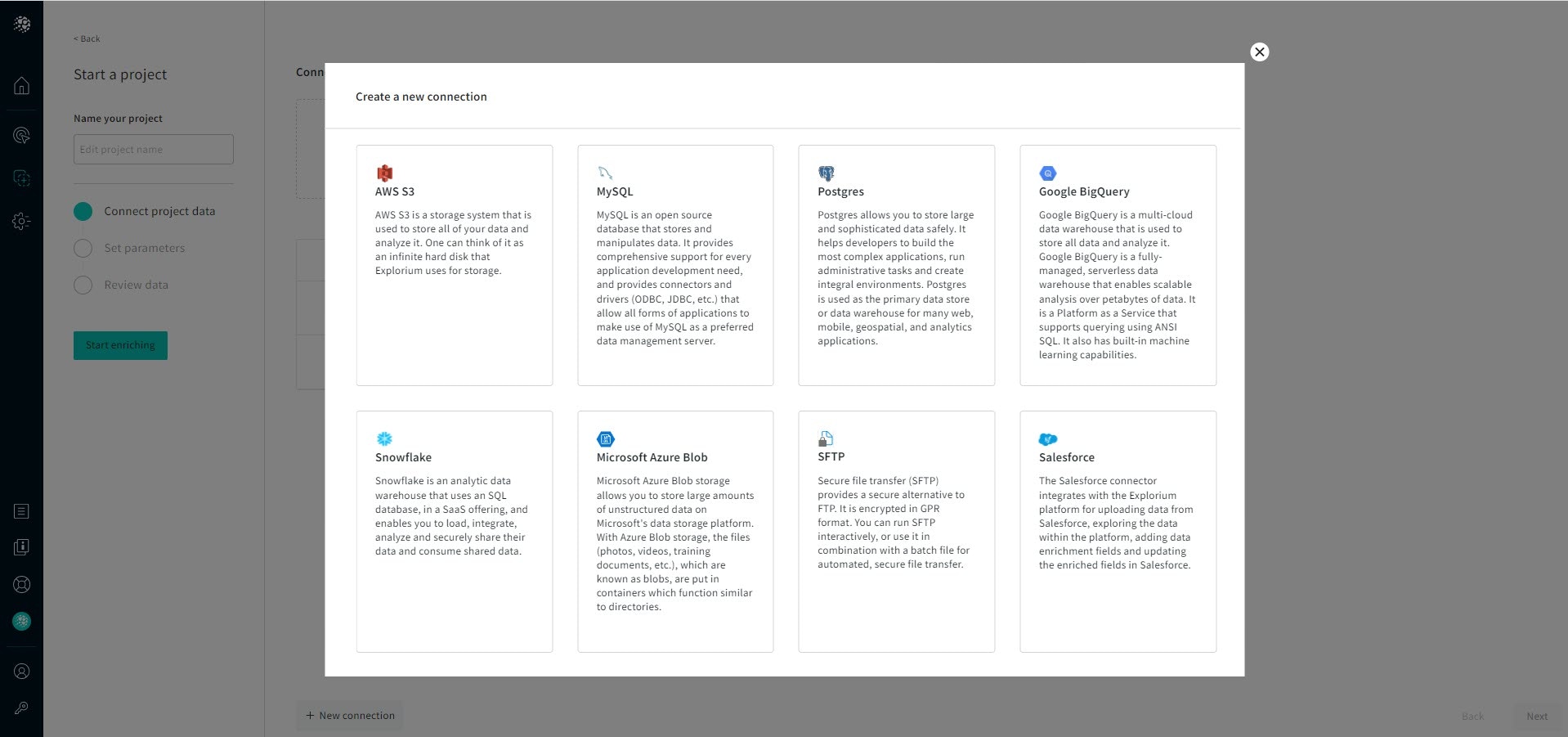
6
Select a connection name.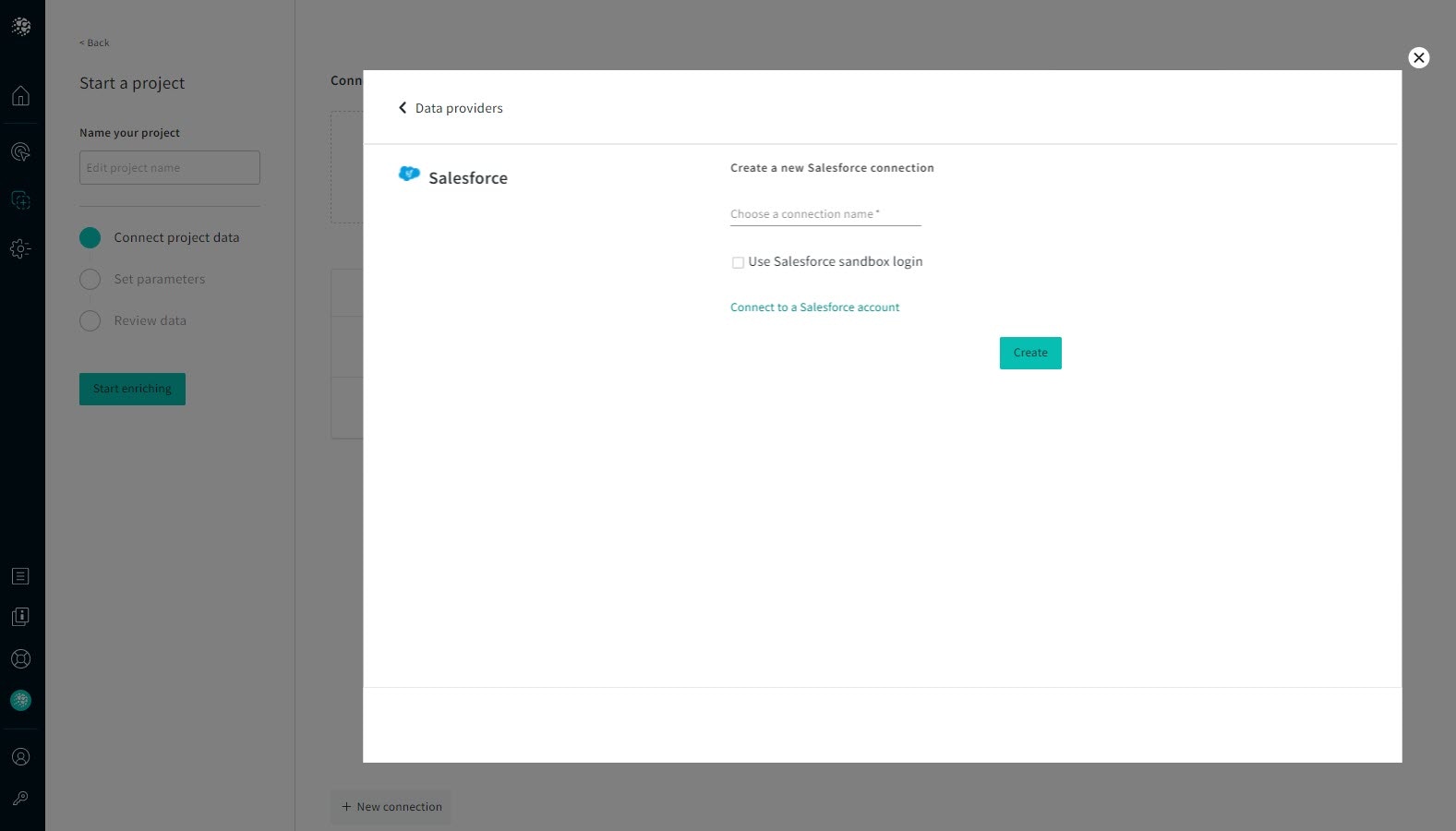
7
Select Use Salesforce sandbox login to work with your Salesforce environment, click OAuth Authentication and enter your credentials in the Salesforce Login window. Sandboxes create copies of your Salesforce org in separate environments. Use them for development, testing, and training, without compromising the data and applications in your production org.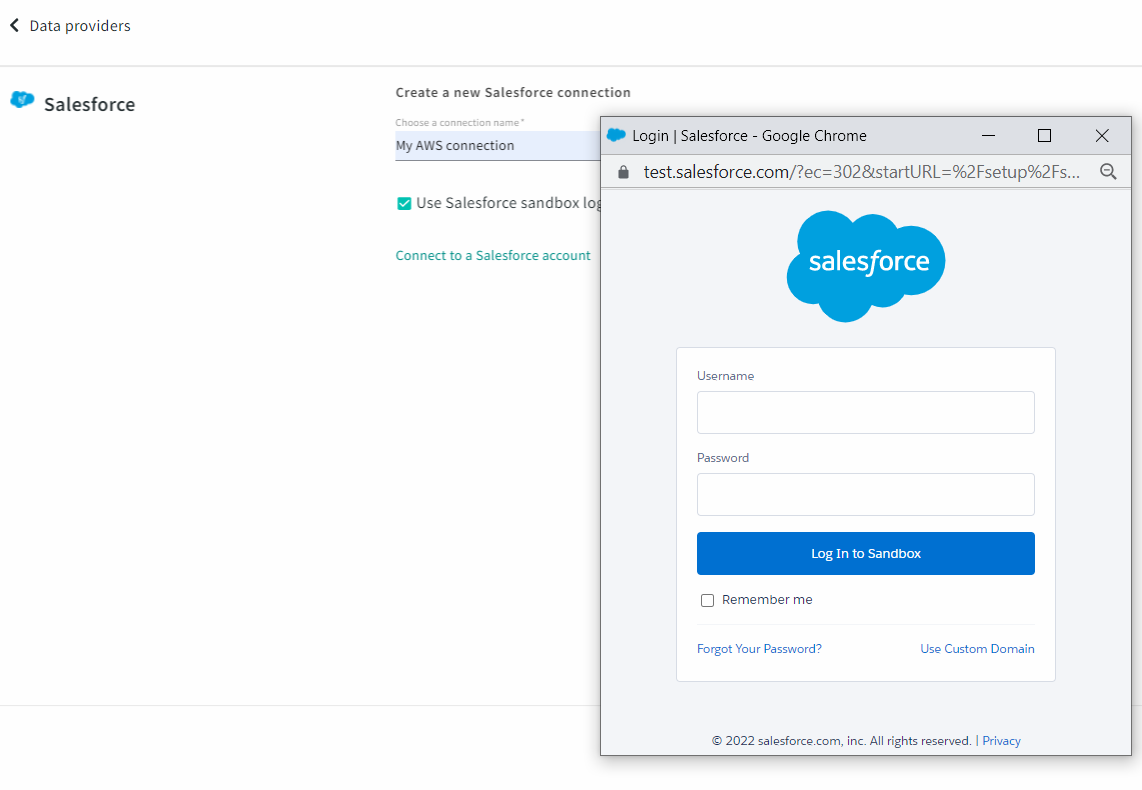
8
Click Create. The application generates a request authorization on your behalf, and a Grant Token is obtained, and with the Grant Token you request an access token which the authorization server validates and issues.
9
Click Test Connection to make sure the connection is successful. A message is displayed informing you if the connection was successfully created. If the test connection failed, then you are unable to create a connection. Note: Before creating a new connection, a Test Connection must be run. If the test failed, or a parameter was changed, the Create button will be disabled, and you need to create a new connection.
Editing a Salesforce Connector
1
Within an Enrich project, from the top right-hand corner, click Export and select Jobs.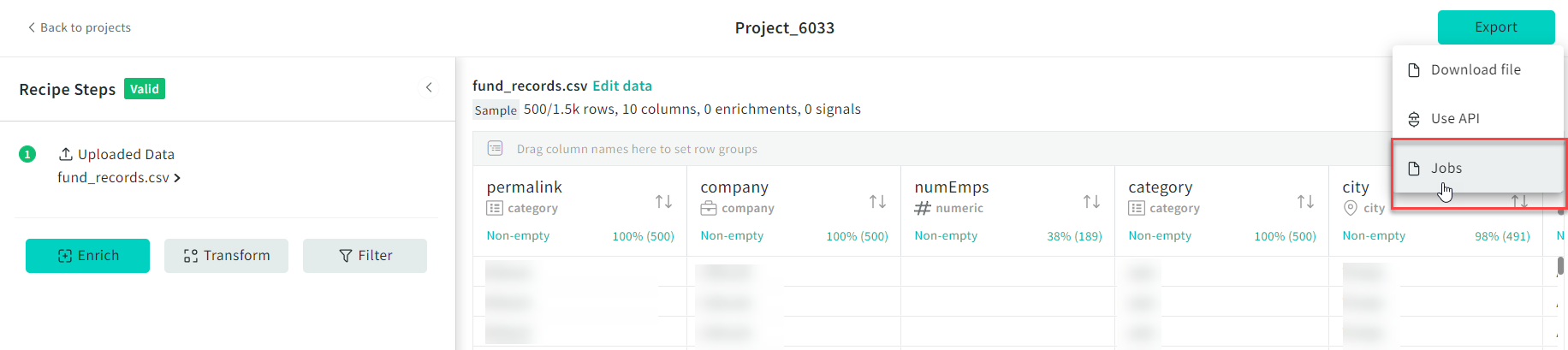
2
The Jobs page is displayed.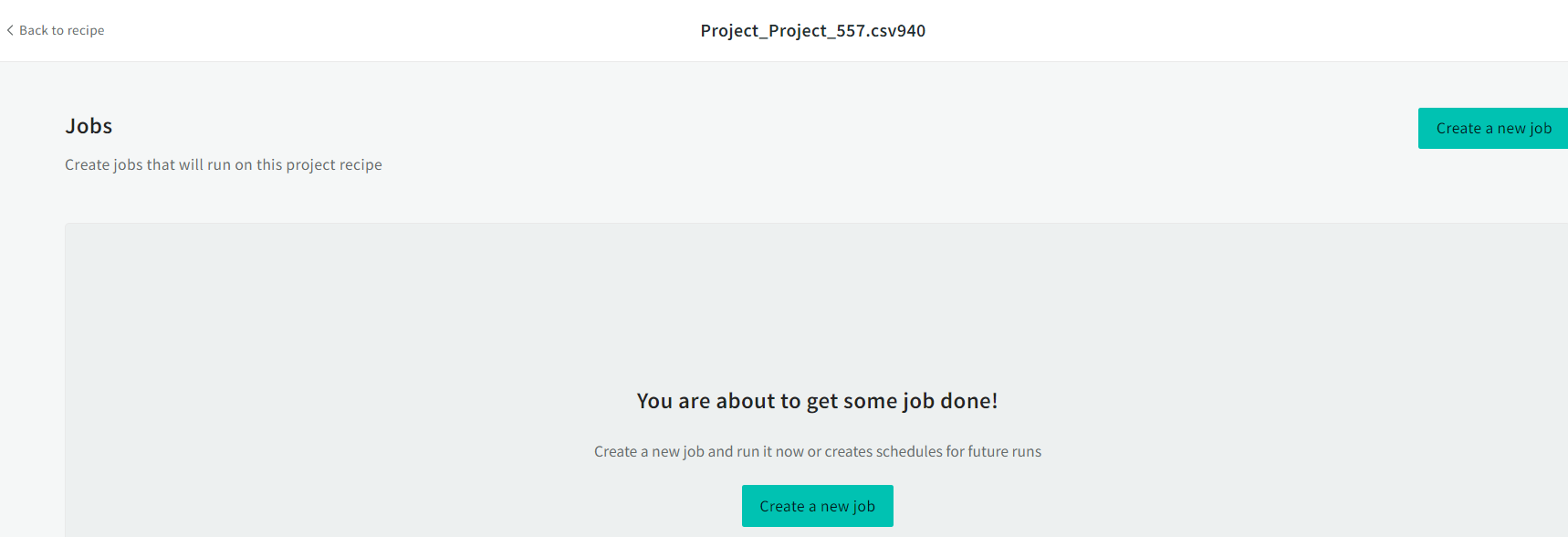
3
Click Job Details, and click the 3 dots next to the Run Job button.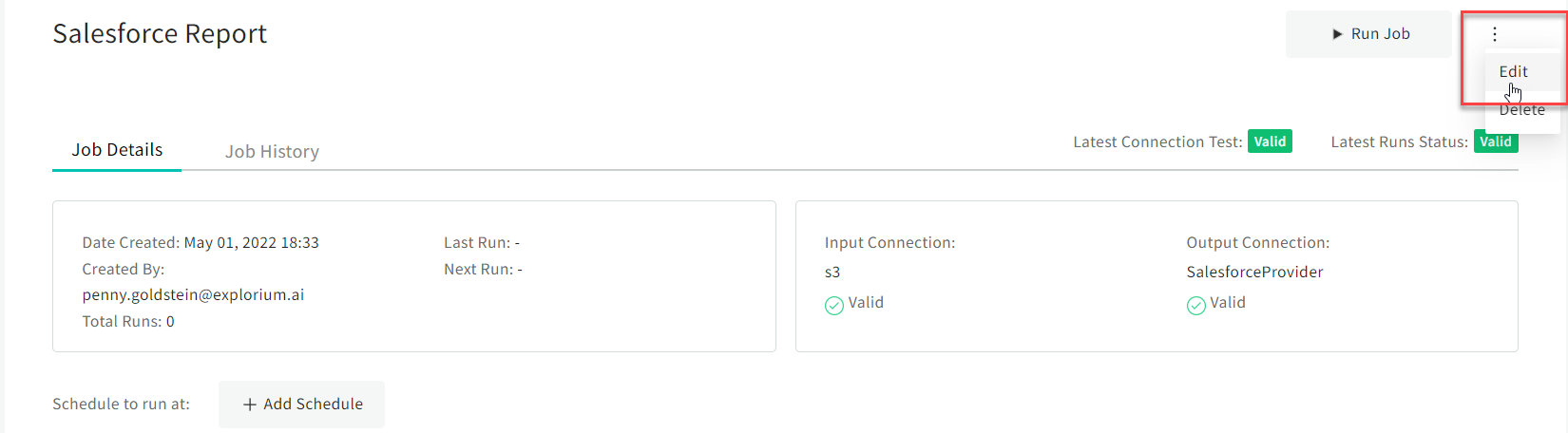
4
Click Edit and make the relevant changes.
Deleting Connectors
NoteThe GUI will change according to the connector that you have selected. To delete a Connector
1
From the Enrich module, search / open the connector that you want to delete.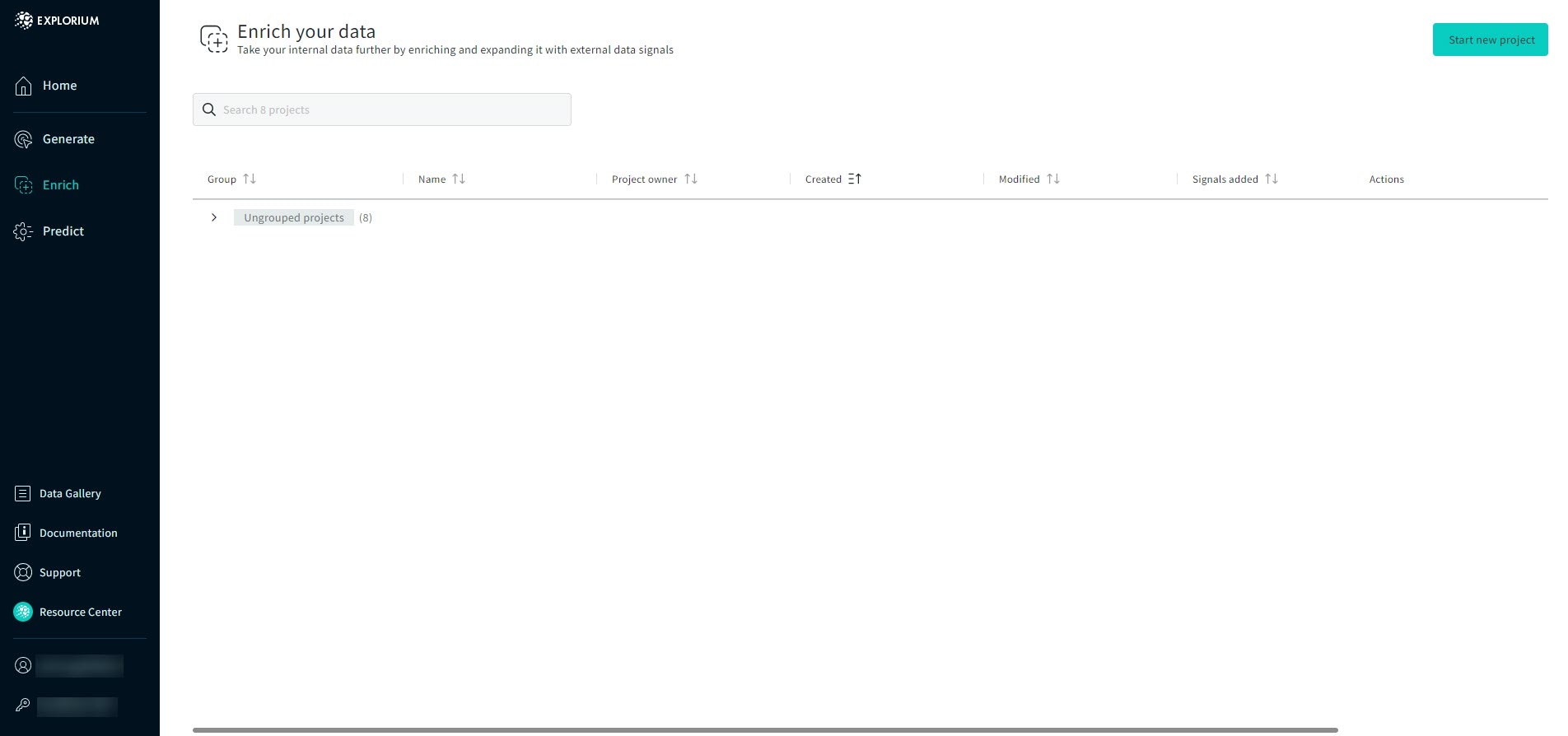
2
Click the 3 dots, and click Delete on the connector that you want to remove.